Chapter 16 · Part 3: Make it yours
Deploy it for real
You put an empty app online back in Chapter 7. Since then, it has grown a database, sign-in, a members' area, visits, and reviews. This chapter is where all of it goes live, for real people, with real data.
The code is the same code. What changes is where it runs, and what it's allowed to know. On your computer, the app reads its settings from .env.local. On Vercel, it reads them from Vercel. Moving the settings is most of the job. The rest is making sure that every state the app can be deployed in is a safe one.
First, what the live site is doing right now
If you pushed your app to GitHub before adding any settings, Vercel has already published it. Open your live address. It's worth looking at, because this is exactly what a deploy looks like before the settings are in.
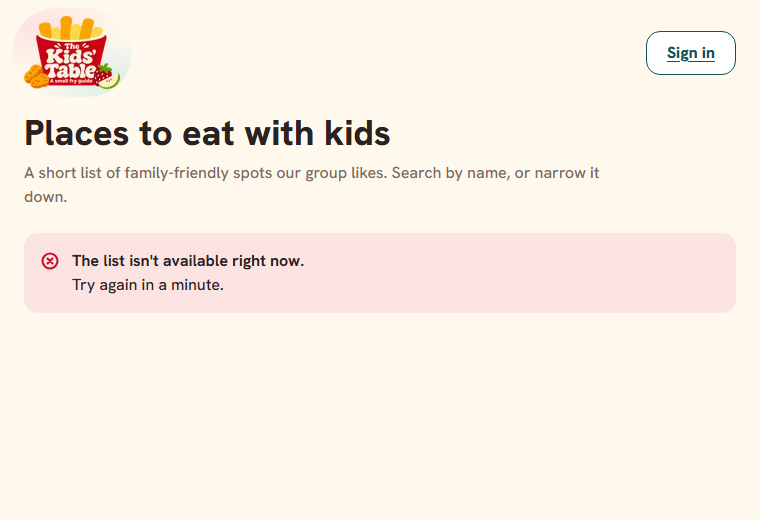
Nothing is broken, and nothing is leaking. The page doesn't say which setting is missing or which database it's looking for. A stranger learns that the list isn't ready, and that's all.
That didn't happen by accident. Early on in this phase, we started the finished app with no settings at all and asked every page, and every one of the sign-in addresses, what they do. The first time, the sign-in addresses crashed with a 500 error and a message naming the missing secret. That's a problem: an error that names a setting tells a stranger something about your app, and a crash looks broken. So the app now checks its settings first. If anything's missing, the sign-in pages say “isn't available right now,” and the sign-in address answers with a short, plain 503. We ran the check again and got 32 answers out of 32, all plain.
A good habit
Before you launch anything, ask what it does in each state it can be in: no settings, some settings, all of them. A deploy always passes through the first two on its way to the third.
1. Make a secret for the live site
Use a new BETTER_AUTH_SECRET for the live site, not the one on your computer. The two apps then can't read each other's sign-ins, and if one ever leaks, you can replace it without touching the other. Make it the same way you did in Chapter 12, in a terminal of your own, outside Claude Code:
node -e "console.log(require('crypto').randomBytes(32).toString('hex'))"Save it in your password manager from Chapter 5 right away, because you won't paste it into Vercel until step 5. Don't paste it into a chat, a document, or .env.local.
2. Check your settings before you launch
The settings are four short lines, and one typo can cost an evening. So Claude makes a checker for you. It says, for each setting, whether it's there and whether it looks right. It never prints a secret.
Save the phase plan
Save this in your
planfolder as16-deploy.md.plan/16-deploy.md# Phase 16: get ready to go live Read `plan/00-app-plan.md`, `plan/12-add-sign-in.md`, `plan/15-share-with-group.md`, `plan/design-system.md`, and `plan/screen-checklist.md` first. This phase makes the app safe to put online and gives us two ways to check it. I will add the settings to Vercel and Atlas myself. You don't touch either of them. ## Goal The app behaves sensibly in every state it can be deployed in: with no settings at all, with some of them, and with all of them. Strangers can't reach private pages. Every page carries a few basic security headers. I can run one command before launch to check my settings, and one after launch to check the live site from the outside. ## What to build - **A check for whether sign-in is set up,** in `lib/authConfig.ts`, as plain functions with tests. Sign-in is set up when the database address is present, the secret is at least 32 characters, and, in a production build, the app's own address is present and starts with https (plain http is allowed only for localhost, so I can try the finished build on my own computer). It must say which setting is wrong without ever returning a value. - **Until sign-in is set up, say so plainly.** The sign-in and sign-up pages say "isn't available right now". The `/api/auth` address answers 503 with a short message and nothing else. The session lookup returns "nobody". No page may show a stack trace, a setting name, or a database detail. Requests that arrive before the settings do must never crash. - **A gate in front of the private pages,** in `proxy.ts`. Anyone with no sign-in cookie at all who asks for `/places`, `/visits`, `/members`, `/import`, or `/waiting` gets a redirect to the sign-in page before any page code runs. This is a convenience, not the protection: it only checks that a cookie exists. Every page and every action must still check who is signed in, as they already do. Say that in a comment. - **Security headers on every page,** in `next.config.ts`: stop the browser guessing file types, refuse to be shown inside another website's frame, send only the site's name when someone follows a link out, and turn off the camera, microphone, and location. Don't add a content security policy beyond the frame rule. It would need careful testing, and it isn't part of this phase. - **`npm run check:settings`,** a script that reads my `.env.local`, says for each setting whether it's there and looks right, and never prints a secret. It prints how long the database address and the secret are, and nothing else about them. With `--live` it checks the way the live site needs them. - **`npm run check:live -- <address>`,** a script that checks a running copy of the app from the outside. It only sends ordinary requests. It never makes an account. It checks the public page, the headers, that private pages redirect to sign-in, that the sign-in system answers, that the status page says only Connected or Not connected, that a sign-in sent from another website is refused, that wrong passwords get a plain no and then stop after a few tries, and that changing a header doesn't dodge that limit (skipped with `--local`). With `--private "A,B"` it checks that those names appear nowhere on the public page, searching by one word of each name so the search box doesn't echo the whole name. ## Rules for this phase - Never print, ask for, or write a secret. The checks report presence and length only. - Treat the live site as someone else's computer: the scripts make only ordinary requests, and the check script says it will trip the guess limit on purpose. - No new color or shape: use the design system. - Tell me what each command does before you run it. Use the demo data, not my real database. ## Done when - `npm test` passes, including the new settings tests. - A production build started with no settings at all answers every page with a plain page or a redirect, never a 500, and nothing technical appears. Every `/api/auth` request gets a 503 with the short message. - A signed-out request to each private page gets a 307 to the sign-in page. - Every page carries the five security headers. - `npm run check:settings` is correct for a good set of made-up settings, for a set with each kind of mistake, and for no settings at all. - `npm run check:live` passes against a production build run on my own computer with all the settings in, using `--local`. - Every earlier end-to-end check still passes. - `npm run lint` and `npm run build` pass. ## Out of scope Custom domains, sending email, resetting a forgotten password, and monitoring. Those aren't part of this guide's first launch.
Paste the prompt
Keep Claude Code in the mode where you read each request. The last sentence asks it to run the app with no settings at all, which is the test above.
Prompt for Claude CodeRead plan/00-app-plan.md, plan/12-add-sign-in.md, plan/15-share-with-group.md, plan/design-system.md, plan/screen-checklist.md, and plan/16-deploy.md in this folder. Then do phase 16. Before you run any command, tell me in plain English what it does. Use the demo data, not my real database. Never print, ask for, or write a secret: the checks report whether a setting is there and how long it is, and nothing else. When you finish, run the app with no settings at all and tell me what every page does, and then tell me how to run the two checks.
Run the checker
PowerShellnpm run check:settings
Here is what it says for a good set of made-up settings, and for a set with a mistake in every line. We ran both on the reference app.
OK       MONGODB_URI: set (48 characters)
OK       BETTER_AUTH_SECRET: set (40 characters)
OK       BETTER_AUTH_URL: set (https://kids-table.vercel.app)
OK       OWNER_EMAIL: set

Ready.
PROBLEM MONGODB_URI: set, but it still contains the placeholder for the password. Replace it with the real one.
PROBLEM BETTER_AUTH_SECRET: set, but only 5 characters. It needs at least 32.
PROBLEM BETTER_AUTH_URL: set, but the live site needs an address that starts with https://.
PROBLEM OWNER_EMAIL: set, but it doesn't look like an email address.
Not ready yet. Fix the lines marked PROBLEM and run this again.The https:// line only appears when you add -- --live, as in npm run check:settings -- --live, which checks your settings the way the live site needs them. On your own computer, BETTER_AUTH_URL can be http://localhost:3000, or left out. We ran the second example with --live.
Notice what it prints about your secrets: that they're there, and how long they are. That's enough to catch a missing line or a half-pasted string, and it means you can paste the output into a chat for help without giving anything away.
3. Make your owner account on your own computer first
Do this before the live site has its settings
In Chapter 12 you saw that the app doesn't check that an email address really belongs to the person typing it. So whoever signs up with OWNER_EMAIL first becomes the owner. Once the live site is working, anyone could type your address into its sign-up page. So make your account first, on your computer, against the same database the live site will use. If you already did that in Chapter 12, you only need to check it in the steps below.
Put all four settings in .env.local
MONGODB_URI, aBETTER_AUTH_SECRET(the one on your computer is fine),OWNER_EMAIL, andBETTER_AUTH_URLset tohttp://localhost:3000. Runnpm run check:settingsuntil it says Ready. Then stop the dev server with Ctrl+C and start it again, because the app reads its settings when it starts.Start the app and sign up
PowerShellnpm run dev
Open http://localhost:3000/sign-up and make your account with the owner email. The header should show Members and Import. That means you're the owner.
Load your restaurants
If your real database is still empty, use Import, as you did in Chapter 10. Then use the Owner controls from Chapter 15 to choose which places are public.
4. Let Vercel reach your database
Run on the reference app
Both changes in this step were made on the reference app's own Atlas account. Atlas's screens change from time to time, so your buttons may be worded a little differently. The reasoning comes from MongoDB's guide to connecting from Vercel (opens in a new tab).
When your app runs on your computer, Atlas lets it in because your computer's address is on its list, which Atlas filled in for you in Chapter 5. On Vercel, the app runs on servers whose addresses change. MongoDB's documentation says so directly: a Vercel deployment uses dynamic addresses, and the cluster has to allow all of them, written 0.0.0.0/0.
What 'allow all' really means
Allowing every address means Atlas will accept a connection attempt from anywhere. It doesn't mean anyone gets in. To connect, someone still needs your database user's name and password, which only you and Vercel have. But it does remove one layer, the address check, so the other layers have to carry more. That's why this step is two changes, not one.
Make the database user less powerful
In Atlas, open Database Access and edit your user. In Chapter 5 you gave it a broad role, read and write on any database, to keep things simple. Change it so it can only read and write the app's own database,
kidstable, and nothing else. If the password ever leaks, that's all it opens.In the edit window, find Specific Privileges and press Add Specific Privilege. Choose the role readWrite and type the database name. Leave the collection blank, which means every collection in that database. Then remove the broad built-in role, and press Update User.
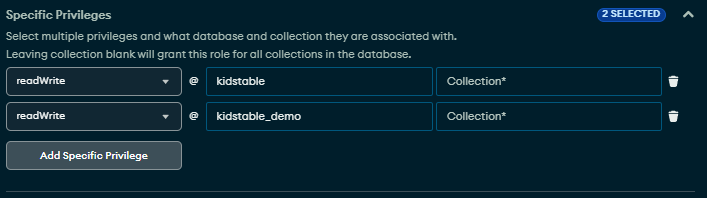
The author's setup, captured November 15, 2026. You only need the first line. The second is a separate database the author uses for testing, so he can still run automated checks without touching real data. Allow connections from anywhere
Open Network Access and press Add IP Address. Some versions of Atlas have an Allow access from anywhere button that fills in the next part for you. Ours showed only two boxes, so we typed it ourselves. In Access List Entry, type
0.0.0.0/0. In Comment, write why, such as Vercel, addresses change. Leave the temporary switch off, because a temporary entry deletes itself after a few hours and the live site would lose its database. Press Confirm, and wait for the entry to say Active.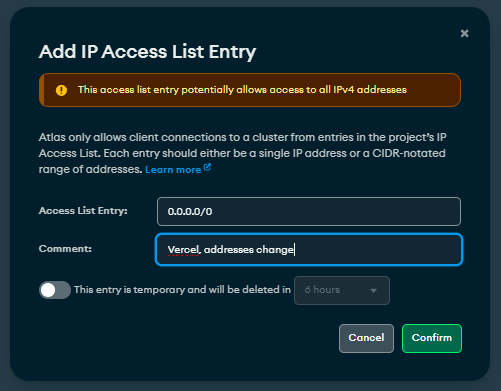
Captured November 15, 2026. The orange warning is Atlas being honest about what you're doing. It's expected here, and it's the reason the database user from the step above is limited.
There are ways to avoid the wildcard, such as sending your database traffic through a paid service that has fixed addresses. For a small group's app on free plans, MongoDB's own guidance is the wildcard plus a strong password and a limited user, and that's what this guide does. Chapter 18 returns to when you'd want more.
We checked that the narrower user really is narrower. Using the reference app's own connection string, we asked for the restaurants in kidstable, which was allowed, and for the contents of Atlas's admin database and of an unrelated database called test. Both were refused. That's what limiting a user is supposed to look like.
5. Give Vercel its settings
Run on the reference app
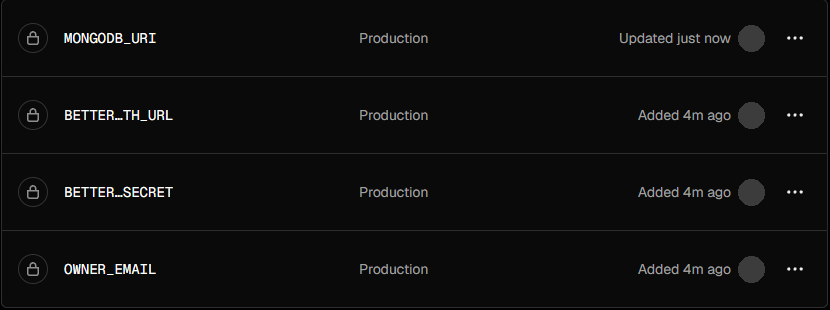
The author added these four settings in Vercel for the reference app, redeployed, and checked the result from the outside in step 6. The screenshot below is real. Vercel's buttons change from time to time. The rule about redeploying comes from Vercel's guide to environment variables (opens in a new tab).
In Vercel, open your project, then Settings, then Environment Variables. Add four, one at a time. For each, type the name, paste the value, and choose the Production environment.
| Name | Value |
|---|---|
| MONGODB_URI | The same connection string as in .env.local, with your real password in it |
| BETTER_AUTH_SECRET | The new secret from step 1, copied from your password manager |
| BETTER_AUTH_URL | Your live address, starting with https://, such as https://kids-table.vercel.app. No slash at the end. |
| OWNER_EMAIL | The same email you used in step 3 |
- Mark the secret and the connection string as sensitive if Vercel offers it. Vercel says a sensitive value can't be read back from the dashboard once it's saved. If you ever need to check one, you'll have to type it in again.
- Choose Production only. Vercel also builds a separate preview copy of your app for each change, at its own address. The app only accepts sign-ins from the address in
BETTER_AUTH_URL, so a preview copy couldn't sign anyone in anyway. - Redeploy. Vercel says changes to environment variables apply only to new deployments. After the last one, open Deployments and look for Redeploy on the latest one, usually in the menu beside it. We took no screenshot of this part, so if your screen looks different, search Vercel's documentation for “redeploy.”
- Copying from
.env.local? Open the file, copy the value, and then click somewhere else before you message Claude. A highlighted line travels with your next message. “If a secret leaks,” below, shows what happens when it does.
6. Check it from the outside
When the new deployment is ready, there are two ways to find out whether it works. One is to click around. The other is to ask a script that behaves like a stranger, and doesn't get tired or skip a step. Claude made that too:
npm run check:live -- https://your-app.vercel.app --private "Name of a private place,Another one"
Put your own address in, and the names of your own private places after --private. The script only sends ordinary requests. It never makes an account. Here's what it said for the reference app's live address, on November 15, 2026:
OK       The public page loads  (200)
OK       The public page is showing its list, not an error
OK       The security headers are on
OK       The page doesn't announce which framework it uses
OK       Signed out, /members sends you to sign in  (307 /sign-in)
OK       Signed out, /import sends you to sign in  (307 /sign-in)
OK       Signed out, /places sends you to sign in  (307 /sign-in)
OK       Signed out, /places/new sends you to sign in  (307 /sign-in)
OK       Signed out, /visits sends you to sign in  (307 /sign-in)
OK       Nobody is signed in, and the sign-in system says so  (200)
OK       The status page says only Connected or Not connected
OK       A sign-in sent from another website is refused  (403)
OK       A wrong password gets a plain 'no', never an error  (401)
OK       Too many wrong guesses from one address are stopped  (401 401 401 401 429 429 429 429)
OK       Changing a header doesn't dodge the guess limit  (429 429 429 429)
OK       No private place appears on the public page, or in a search for its name

All 16 checks passed.
What running it taught us
The first run on the live site found two problems, and both were in the script, not the app. When we didn't pass --private, it mistook the web address for the name of a private place. And when we ran it twice within a minute, the second run reported problems that were really the guess limit still holding. Now it only looks for private names when you give it some, and it says “skipped” when the limit is in the way. A check is code too, and it needs testing like the rest.
It trips the guess limit on purpose
To prove the limit works, the script sends several wrong sign-ins. For about a minute afterwards, you can't sign in from the same computer either. That's the limit working. Wait a minute, and it clears.
The check that only works on the real host
The guess limit counts attempts per address, so it matters where the app gets a visitor's address. On your own computer, the visitor can write any address they like in a header, and the limit believes them. On Vercel, Vercel's documentation (opens in a new tab) says the host sets the address itself, from the connection, and replaces whatever the visitor sent. The app reads the host's header first.
The documentation says so, and the check is how you find out for yourself. After the limit has stopped you, it sends four more wrong sign-ins, each pretending to come from a different address. If the limit can be dodged, one of them gets through. On the reference app, all four were refused (429 429 429 429). That's the answer you want. If yours isn't, tell Claude before you do anything else. It's skipped with --local, because on your own computer there's no host to ask.
7. Click through it once
The script checks the doors. You should check the rooms. We ran steps 1 to 4 on the reference app's live site: the owner signed in, wrote a review, logged a visit, and reloaded to see both still there. Then we checked the public pages from outside, with plain requests, for words from that review. There were none, and the private pages sent a signed-out visitor to sign in. Step 5 is a checklist for you. On the live address, signed in as yourself:
- Sign in with the owner email and password. The header shows Members and Import.
- Open Places. Your restaurants are there, and the private ones are marked.
- Open a restaurant, write a review, and log a visit. Reload. They're still there.
- Sign out. Open the live address in a private window. Only your public places show, and no reviews.
- In the private window, press Create an account with a friend's email, or a second email of yours. You land on the waiting screen. Go back to your own window, and approve them under Members.
A front door isn't a lock
Claude added one more thing in this phase, and it's worth understanding because it's easy to misjudge. A small file in front of the private pages checks whether a visitor has a sign-in cookie at all. If not, it sends them to the sign-in page before any page code runs. That gives a stranger, or a script, a plain redirect instead of a page.
But it only checks that a cookie exists. It can't tell a real one from a made-up one. So it's a front door, not a lock. The lock is still what you built in Chapters 12 to 15: every page and every action asks the database who is signed in, and what they're allowed to do. We tested the difference by sending made-up cookies, in three different spellings, to every private page. The front door let them through, and every page sent them to sign in. 24 requests, no private data in any of them.
If a secret leaks
It happened on the reference app while this chapter was being written, so here is what it looks like and what to do. A line in .env.local was highlighted in the editor, and that highlighted line, which was the whole database connection string including its password, went along with the next message to Claude. Anything you select in your editor can travel with your message. Nobody else saw it, but it was now written down somewhere it shouldn't be.
Change the secret, not just your habits
In Atlas, open Database Access, press Edit next to the user, press Edit Password, and choose Autogenerate Secure Password. Copy it, then press Update User. The old password stops working at once.
Put the new one in both places
Replace only the password inside
MONGODB_URIin your.env.local, and do the same forMONGODB_URIin Vercel. Then redeploy, because Vercel only applies changes to new deployments.Prove it still works
Start the app on your computer and open a page that reads data. Then run
npm run check:liveagainst the live address. We did exactly this on the reference app, and the checks passed.
Two habits stop it from happening again. Before you message Claude, click away from anything highlighted in .env.local, or close the tab. And make secrets in a terminal of your own, never in the chat. A secret that has leaked is cheap to replace, and a leaked one you keep using is expensive.
If it doesn't work
The live site still says “The list isn't available right now.” Either MONGODB_URI isn't set for Production, or you haven't redeployed since you added it. Check the name for typos, then redeploy.
Sign-in says “isn't available right now.” Sign-in turns itself off until all of its settings are valid. Run the check on your computer, and look at the live ones: the secret must be at least 32 characters, and BETTER_AUTH_URL must start with https://.
Sign-in works on your computer and the live page shows an error when you press the button. BETTER_AUTH_URL must match the address in your browser exactly. If you open the site at a custom address, use that one. If it says vercel.app and you set another address, sign-in is refused.
The status page says “Not connected” even with the settings in. Most often this is Atlas Network Access: the entry for all addresses isn't there, or isn't active yet. It can take a minute to apply. The second most common cause is a password in the connection string that has a symbol in it. Letters and numbers only is the simplest.
Sign-in stopped working on your own computer after you set things up for the live site. Check .env.local. If BETTER_AUTH_URL holds your live address, delete that line. The live address starts with https, so the app tries to set a cookie that a plain http://localhost page won't keep. The live address belongs in Vercel only.
You changed a setting in .env.local and nothing changed. The app reads its settings when it starts. Stop the dev server with Ctrl+C and start it again.
git says “push declined due to email privacy restrictions.” GitHub is refusing commits that carry a private email address. In GitHub, open Settings, then Emails, and copy the no-reply address it shows, which is a number, a plus sign, your username, and then @users.noreply.github.com. Tell Claude to use it for the commits in this project, and to fix the ones that haven't been pushed yet. Your real address stays private.
You can't sign in after running the live check. That's the limit you just tested. Wait a minute.
Your owner account became someone else. You skipped step 3. Make your own account on the real database, and ask Claude how to remove the other.
What Claude made
lib/authConfig.tsdecides whether sign-in is set up. It's used by the app and by the checker, so they can't disagree. Six tests cover it.- The sign-in address, the session lookup, and the two sign-in pages now handle missing settings quietly.
proxy.tsis the front door for the private pages.next.config.tsadds five security headers to every page: no guessing file types, no appearing inside another website's frame, only your site's name when a link is followed, and no camera, microphone, or location.scripts/check-settings.mjsandscripts/check-live.mjsare the two checks.
Checkpoint
0 of 6Next step: it's live. In Chapter 17, you'll learn the everyday loop for changing an app people are using: make a change, test it, ship it, and undo it when it goes wrong.
Last checked November 15, 2026. Software screens and free-plan limits change. If something here doesn't match what you see, the official link in the chapter is the source to trust.