Chapter 17 · Part 4: Keep it running
Change it, ship it, undo it
Putting an app online feels like the finish line. It's actually the start of a different job: changing something people are already using. The worry is natural. What if I break it? The answer isn't to be careful forever. It's to make changes small, check them before they go out, and know exactly how to take one back.
This chapter walks through one real change, start to finish, in five moves: change it, check it, save it, ship it, undo it. We ran every one on the reference app, and the live site was changed and changed back while we did. The two Vercel features that come from Vercel's own documentation, a rollback and a preview, are labeled that way.
1. Pick a small change
Back in Chapter 10, you moved every list of choices into one settings file. That was for a day like this one. A group of friends decides that some restaurants have a fenced yard, a safe place for small children to run, and they want to be able to say so. That's a fourth feature, next to Patio, Playground, and Play area.
How much of the app has to change for that? Before we touched anything, we searched the whole project for every file that mentions a feature by name. The answer was one file, lib/settings.ts. The add form, the filters, the import page, and the owner's list all read their choices from it. The change is one line.
   { key: "play-area", label: "Play area" },
+  { key: "fenced-yard", label: "Fenced yard" },
 ],
Remember the two parts of every choice: the key is what gets stored, and the label is what people see. We'll come back to why that matters near the end of the chapter.
2. Ask Claude to make it
You can make this change by hand. It's one line. But asking Claude is a good habit, because the prompt makes it do the part people skip: look for other places first, show you exactly what changed, and run the checks.
Add a fourth feature to my restaurant settings: the key is fenced-yard and the label is Fenced yard.

Before you change anything, search the whole project for any other place that lists the features, and tell me what you found. Then make the change and show me the exact diff. Run the tests, the linter, and the type check. Don't run a build while my dev server is running, and don't commit or push anything.

Finish by telling me two things: what a visitor will see because of this change, and what they won't.
The last sentence of that prompt is worth copying into your own requests. A change does something, and it doesn't do other things. Asking for both keeps you from assuming.
3. Check it before it goes out
Three automatic checks come before your own eyes. On the reference app, with the change made:
| Check | What it asks | Result |
|---|---|---|
| npm test | Do all the app's own rules still hold? | 85 of 85 pass |
| npm run lint | Is the code written the way the project agreed? | Clean |
| npm run build | Can the app be built the way Vercel will build it? (This also checks the types.) | Builds |
Don't build while your dev server is running
npm run dev and npm run build both write to the same hidden folder. Run a build while the dev server is up, and the page in your browser can start showing errors. Stop the dev server with Ctrl+C first, build, then start it again. Vercel does its own build when you push, so this one is for catching a problem on your computer, where it's cheap, before it happens on Vercel, where it's public.
Now look at it yourself. Start the app in a regular browser such as Edge or Chrome, sign in, and open Add a restaurant. Search for a name that isn't in your list, so the form appears. If you imported the sample list in Chapter 10, Zigzag Zebra Pizzeria is already there, so use a different name.
What you should see
Four feature chips instead of three, the last one saying Fenced yard. Pick it, and add the place.
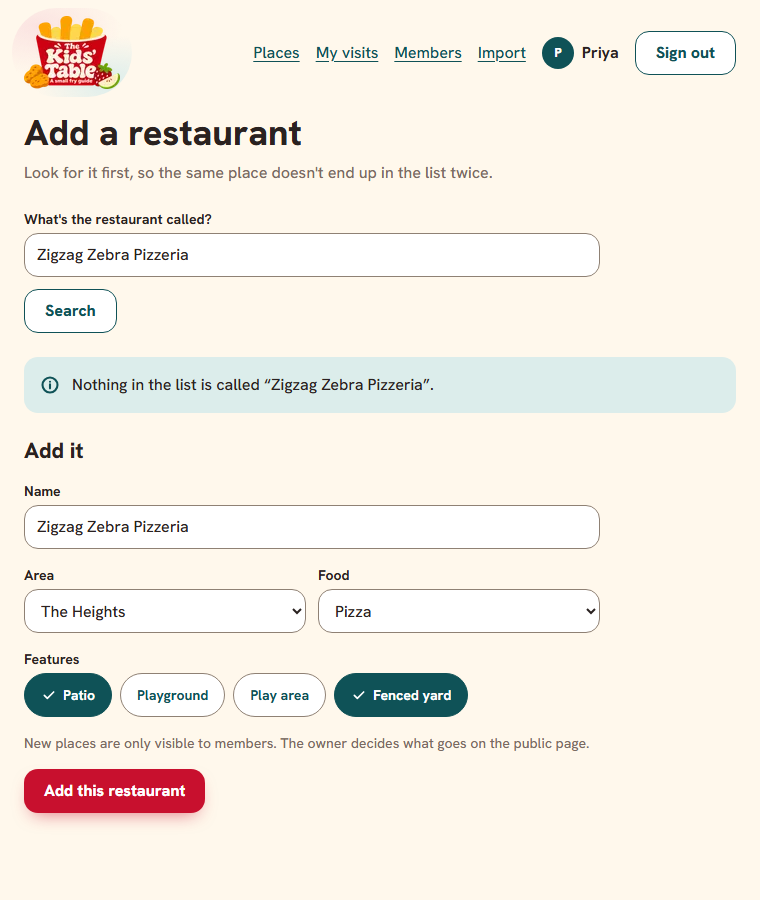
The place is saved with the new feature, and its page shows Fenced yard. We checked that the stored value is the key, fenced-yard, and the label is what appears.
New places only, for now
The chip is in the add form, and the app you built has no way to edit a place after it's added (Chapter 18 lists that as a gap). So the new feature is for places added from now on. A place that's already in your list can't gain it without a change to the database.
Where the new feature shows up, and where it doesn't
This part can look like a bug, so it's worth slowing down. Open the public page, signed out. The new Fenced yard chip isn't there. Nothing is broken. The feature exists, and the app is hiding it on purpose.
There are two lists of choices in your app, and they're built differently:
| Where | Where its choices come from | Does Fenced yard show? |
|---|---|---|
| The add form, for signed-in members | Everything in the settings file | Yes, right away |
| The members' list filters | Everything in the settings file | Yes, right away |
| The public page filters | Only features that at least one public place has | No, not yet |
Here's why. Imagine the public page did show a Fenced yard chip, and no public place had that feature yet. A visitor taps it, presses Show restaurants, and gets 0 restaurants. That's a dead end: a button that promises something and delivers nothing. The visitor wonders whether the site is broken, or whether they did something wrong.
So in Chapter 11, you built the public filters to offer only choices that lead somewhere. The page looks at the places a stranger is allowed to see, collects the features those places have, and builds the chips from that list. If no public place has a feature, the chip simply isn't there. It also means a private place can never reveal itself through a filter. A chip for a feature that only a private place has would hint that the place exists.
The members' side doesn't work this way, because members can see every place. A new feature always leads somewhere for them, since the place they just added has it.
So to see the chip on the public page, a public place has to have the feature. Make the new place public with the owner's button from Chapter 15, and look again.
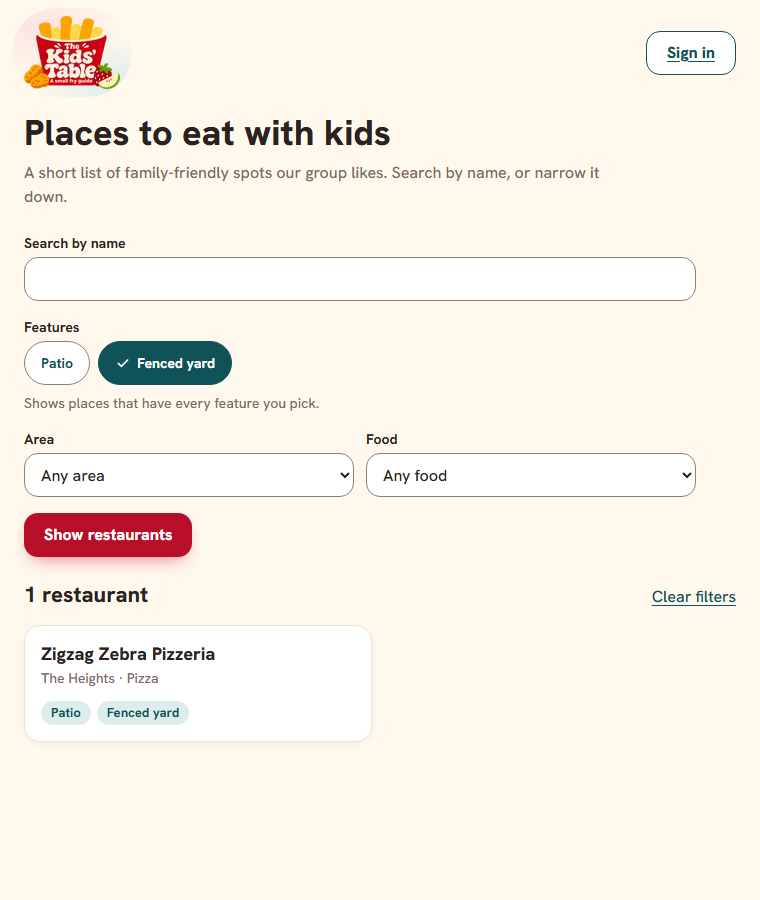
So the order of events is: the feature exists, a place gets it, the owner makes the place public, and only then does a stranger see a chip. That's the right behavior, and it's the kind of thing you only learn by looking. It's also why the prompt asks Claude what a visitor won't see: a change that seems to have done nothing may be working exactly as designed.
4. Save it, ship it
Two ideas, and they're easy to blur. Saving a change means recording it in your project's history, with a note saying what and why. That's a commit. Shipping means sending it to GitHub, where Vercel notices and puts it online. That's a push. You can save ten times before you ship once.
Look at what you're about to save
PowerShellgit status
PowerShellgit diff
You should see one file,
lib/settings.ts, and one added line. If you see anything else, stop and find out why before you go on.Save it
PowerShellgit add lib/settings.ts
PowerShellgit commit -m "Add a Fenced yard feature"
Naming the file in
git add, instead of adding everything, is a small habit that stops a stray file from sneaking into a commit.Ship it
PowerShellgit push
Vercel starts a new deployment on its own. GitHub shows its result next to your commit, a status that says Vercel: Deployment has completed when it's done. You can also watch the Deployments tab in Vercel. For the reference app, the push that undid this change took about 40 seconds from push to live.
Check it from the outside
Don't trust a green check alone. Run the same check you made in Chapter 16. It will stop you signing in for about a minute, as it did there.
PowerShellnpm run check:live -- https://your-app.vercel.app --private "Name of a private place"
On the reference app, with this change live, it passed 16 of 16. Then sign in on the live address, open Add a restaurant, and look for the fourth chip.
Why ship small
This change was one line. If it had broken something, there would be exactly one suspect. A change made of forty edits gives you forty suspects. Small changes aren't timid. They're what make undoing easy and finding bugs fast.
5. Undo it
Sooner or later you'll ship something you wish you hadn't. There are two ways to take it back, and they do different things.
The first way: a new commit that reverses the old one
First make sure you're undoing the right commit. Run this, and check that the one at the top is the one you mean:
git log --oneline -3
If you have other changes you haven't saved yet, save them first. Git won't revert on top of unsaved changes to the same file. Then:
git revert --no-edit HEAD
HEAD means the latest commit, and --no-edit stops git from opening an editor to ask for a message. git revert doesn't erase the commit. It makes a new commit that does the opposite. Your history keeps both, which is exactly what you want: an honest record of what happened, including the change you took back. Then ship it like any other:
git push
We did this on the reference app. The settings file went back to three features, the deployment finished in about 40 seconds, and we checked the live public page. It was exactly as before.
Try it once on this change, so the command isn't new to you on a bad day. If you'd like the feature back afterward, ask Claude to add it again.
The second way: point the site back at the previous version
From Vercel's documentation
This part comes from Vercel's guide to Instant Rollback (opens in a new tab). Vercel keeps your earlier deployments. On your project's overview page, the production deployment has an Instant Rollback button, and the Deployments tab has the same option in each deployment's menu. Vercel says the rollback is instant: it points your address back at the earlier deployment. On the free Hobby plan, you can only go back to the previous deployment. And there's a catch worth knowing: after a rollback, Vercel stops putting new pushes live automatically, until you promote a deployment. Its guide says the Manage button on the production deployment is where you do that.
Which to use? A rollback is the fastest way to stop a problem right now, while you work out what happened. A revert is the way to fix it for good, because it changes your code and not just what's live. You can use both: roll back to stop the damage, then revert and push, then promote the new deployment so normal publishing starts again.
The part code can't undo: your data
Here is the lesson that made us run the next test. Reverting the change put the code back. But what if a place had already been saved with the fenced yard before you took the feature away?
We tried it. In a separate copy of the app, we saved a place with the new feature, made it public, and then removed the feature from the settings file.
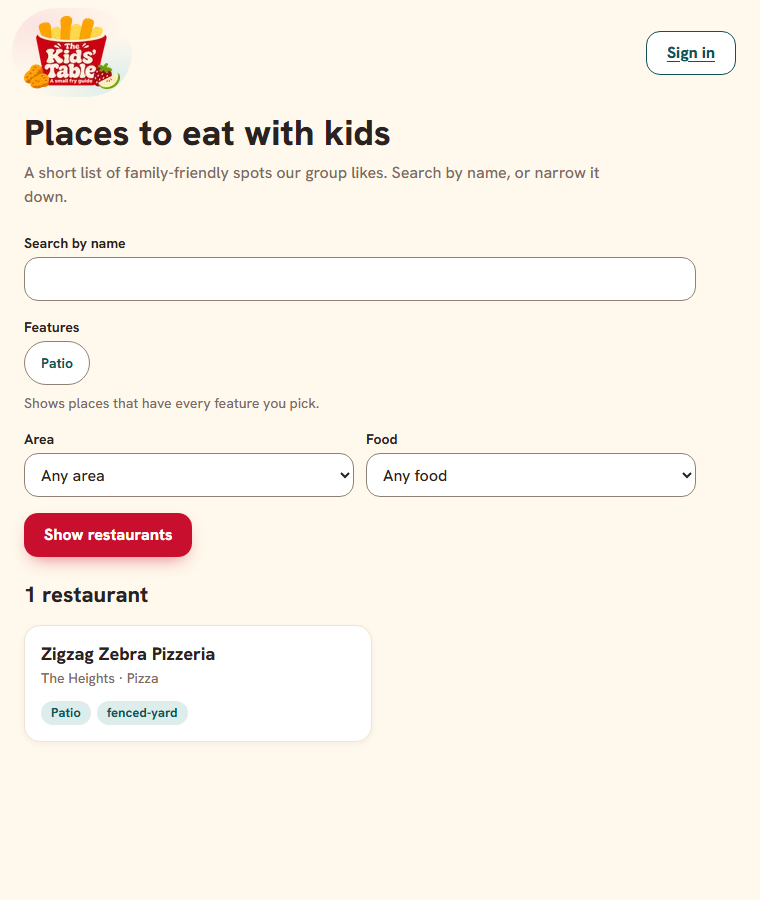
Nothing broke, and nothing was lost. But look at the card: it says fenced-yard, the stored key, because the app no longer has a label for it. The filter doesn't offer it, and an old shared link that asks for it is quietly ignored. The database was never touched. Your code and your data are two different things, and undoing one doesn't undo the other.
This is why keys don't change
In Chapter 10 you read this as a rule: once you have data, don't change a key. Now you've seen the reason. Adding a choice is always safe. Renaming a label is safe too. Removing or renaming a key leaves every place that used it with a leftover. If you really need to retire a choice, ask Claude to find every place that uses it first, and to change them with the same care as in Chapter 12: tell it exactly which records, check them, then change them.
When a change is risky
From Vercel's documentation
Everything above is for a change you're confident about. For a bigger one, there's a safer way to try it first. Vercel's documentation (opens in a new tab) says that when you push to a branch that isn't your main one, Vercel builds a separate preview copy at its own address and leaves your live site alone. You can look at it, show it to a friend, and only merge it into main when you're happy. One thing is certain from Chapter 16: you put the settings in Vercel for Production only, so a preview copy won't have your database or be able to sign anyone in. It's good for looking at layout and words, and not for testing anything that needs data.
If it doesn't work
The tests fail after the change. Read the first failure, not all of them. A test is telling you which rule your change broke. Show it to Claude, with the exact message.
It works on your computer, but Vercel's deployment says it failed. Open the failed deployment in Vercel and read the end of its log. The cause is almost always something the build catches that the dev server doesn't, so run npm run build yourself, with the dev server stopped. While a deployment is failing, check your own live address to see what visitors get, and don't assume.
Vercel says it's ready and the site looks the same. Reload the page without the browser's saved copy (Ctrl+Shift+R). If it still looks the same, check that you pushed to the main branch, and that you're looking at the live address, not a preview.
You pushed the wrong thing. Don't try to erase the commit. Run git log --oneline -3 to check which one it is, then git revert --no-edit HEAD and push. If it's urgent, roll back in Vercel first.
git says “push declined due to email privacy restrictions.” This is the GitHub setting from Chapter 16. Use your GitHub no-reply address for commits in this project.
After a rollback, your new pushes don't go live. That's how Vercel behaves after a rollback. Use the Manage button on the production deployment to promote the deployment you want, and normal publishing resumes.
What changed in the project
Two commits, and that's the whole story: one that added a line, and one that reversed it. The reference app's history keeps both, so anyone reading it later can see exactly what happened. That's the point of making changes this way.
Stretch yourself
You now have the whole loop: change it, check it, save it, ship it, undo it. The best way to make it stick is to run it a few more times on things you care about. Here are nine, from a ten-minute warm-up to a real project.
There's a second goal hiding in here: getting good at asking. Claude can only do what you make clear. So for each activity, write your own prompt first, before you open ours. Then compare. If yours covers the same ground, you're writing good prompts, and you'll see it. If it misses something, that's the lesson.
Ideas and starting points
These nine are extension ideas, each with a possible prompt. They aren't guaranteed to work as written, but they're a strong place to start. The first three follow directly from the settings file you watched work in this chapter. The rest are bigger projects, and Claude will have its own questions. If something differs from what we describe, trust what you see, and ask Claude why.
Six habits behind every example prompt
- Say exactly what you want. Name the file, the keys, the words.
- Look first. Ask Claude to search and tell you what it found before it edits.
- Set the boundaries. No commit or push. Demo data, not the real database. Don't build while the dev server runs.
- Ask for evidence. Run the tests and show the exact diff.
- Ask it to attack its own work. Replay requests as a stranger, a member, the owner. Include a control.
- Ask what a visitor will and won't see. A change that seems to do nothing may be working as designed.
Tap a row to open it.
Add an area and a food typeTeach the app a new part of town and a new kind of food.
Goal. Make the app work for a part of town and a kind of food that aren't in your lists yet.
Try it
- Add one area (for example Pearland) and one food type (for example Seafood) to your settings.
- Run the loop: change it, run the tests, look at it, save, ship, check.
You should see
- Both choices appear at once in the add form's drop-downs and the members' list filters.
- On the public page they appear only after a public place uses them.
- A spreadsheet import now accepts Pearland and Seafood without a warning.
Your turn first
Write your own prompt for this, in a notes file or a blank message, before you open ours. Name the file and the exact keys and labels. Say what you want Claude to search for before it edits, and what it must not do.
One prompt is enough.
Show example prompt
In lib/settings.ts, add one new area (key: pearland, label: Pearland) and one new food type (key: seafood, label: Seafood).

Before you change anything, search the whole project for any other place that lists areas or food types, and tell me what you found. Only change other files if the search shows they list these choices.

Then make the change and show me the exact diff. Run the tests, the linter, and the type check. Don't run a build while my dev server is running, and don't commit or push anything.

Finish by telling me three things: where the new choices will appear right away, where they won't appear until a public place uses them, and one CSV row I can import to try them out.
Compare yours
- Did yours give the keys and the labels separately?
- Did yours ask Claude to search for other lists before editing?
- Did yours say not to commit or push?
- Did yours ask what will and won't change for visitors?
Yours doesn't need to match word for word. If it covers the same ground, you're writing good prompts.
Rename a choice without touching the dataSee the difference between a key and a label with your own eyes.
Goal. Change what people read without changing what the database holds.
Try it
- Change the label of play-area from Play area to Indoor play area. Leave the key alone.
- Then try the opposite on a copy of your settings: change the key, and look at a place that used it.
You should see
- Every page shows the new words, including the tags on places that already had the feature.
- Nothing in the database changes.
- A saved filter link still works, because links carry the key, not the label.
- Changing the key leaves a raw, lower-case leftover on the card.
Your turn first
Write your own prompt for this, in a notes file or a blank message, before you open ours. The whole point is what must NOT change. Say so plainly, and ask Claude to explain the result.
One prompt is enough.
Show example prompt
I want to rename the feature "Play area" to "Indoor play area" in lib/settings.ts. Change the label only. The key, play-area, must stay exactly the same, because places in my database already use it.

Before you edit, search the project for anywhere the words "Play area" or the key play-area appear, and tell me what you find.

Make the change, show me the exact diff, and run the tests, the linter, and the type check. Don't commit or push.

Then explain in plain English: what changes on screen, what does not change in the database, and why a saved filter link that contains feature=play-area still works after this change.
Compare yours
- Did yours say the key must not change, and why?
- Did yours ask for the explanation, not just the change?
- Did yours mention a saved link as the thing to check?
Yours doesn't need to match word for word. If it covers the same ground, you're writing good prompts.
Say it in your own wordsChange how the public page sounds, then find what a text change can't reach.
Goal. Make the public page sound like your group.
Try it
- Change the home heading, the intro, and the tagline in your settings.
- Look at the logo in the header. Does it still match?
You should see
- The heading and intro change on the public page, with no other edits.
- The tagline changes wherever the app uses it as text.
- A tagline painted into your logo image does not change. That's a picture, and only you can replace it.
Your turn first
Write your own prompt for this, in a notes file or a blank message, before you open ours. Ask Claude where each new phrase appears, and whether any of them is baked into an image.
One prompt is enough.
Show example prompt
In lib/settings.ts, change the home heading to "Where our group eats", the home intro to "Places the group likes, with room for kids to move. Search by name or narrow it down.", and the tagline to "Our family food list".

Before you edit, tell me every place in the project where the heading, the intro, and the tagline are used, including page titles, alt text for images, and metadata. Tell me if any of them is part of an image file that I would have to change myself.

Then make the change, show me the exact diff, run the tests, the linter, and the type check, and don't commit or push.

Finish by listing what a visitor will see change, and what will still show the old words.
Compare yours
- Did yours give the exact new words, in quotes?
- Did yours ask for every place the words are used, including image text?
- Did yours ask what will still show the old words?
Yours doesn't need to match word for word. If it covers the same ground, you're writing good prompts.
Try a change on a preview firstLook at a change on the internet before your visitors can.
Goal. Use a branch and a preview so a change can be seen before it goes live.
Try it
- Ask Claude to make a small change on a new branch, not on main.
- Push the branch, then open the Deployments tab in Vercel and find the new entry.
You should see
- Vercel builds a separate preview at its own address, and the live site is untouched.
- The preview can't sign anyone in or read your data, because your settings are for Production only.
- When you like it, merging the branch into main ships it for real.
- This follows Vercel's documentation.
Your turn first
Write your own prompt for this, in a notes file or a blank message, before you open ours. Say the branch name, say exactly what NOT to do (no push, no merge), and ask Claude to explain what to expect in Vercel.
One prompt is enough.
Show example prompt
I want to try a change on a Vercel preview before it goes live.

Create a new git branch called try-tagline. On that branch only, change the tagline in lib/settings.ts to "Our family food list". Run the tests and the linter. Then commit it on that branch with a clear message.

Do not push anything, do not merge into main, and do not switch back to main without telling me.

Then tell me, in plain English: the exact command to push the branch; what I should expect to see in Vercel's Deployments tab afterwards; what the preview can and can't do (it won't have my database settings); the steps to merge the branch into main if I like it; and the steps to delete the branch if I don't.
Compare yours
- Did yours name the branch and say which branch to work on?
- Did yours forbid pushing and merging?
- Did yours ask for the merge steps and the way to throw it away?
Yours doesn't need to match word for word. If it covers the same ground, you're writing good prompts.
Practice an emergency, on purposeFind Vercel's rollback on a quiet afternoon, not during a problem.
Goal. Use Vercel's rollback once when nothing is wrong, so you know where the button is when something is.
Try it
- Ship a harmless change, such as a different tagline.
- In Vercel's Deployments tab, roll back to the deployment before it. Look at the live site, then go forward again.
You should see
- The live site switches back right away, without a new build.
- The old tagline returns.
- After a rollback, Vercel's documentation says new pushes don't go live until you promote a deployment. You'll see that for yourself.
Your turn first
Write your own prompt for this, in a notes file or a blank message, before you open ours. You aren't asking for code here. You're asking for a rehearsal plan. Say what you want written down, and tell Claude to flag what it isn't sure of.
One prompt is enough.
Show example prompt
Help me rehearse an emergency rollback safely, on a change that doesn't matter.

First, make a harmless change: set the tagline in lib/settings.ts to "Rollback practice". Run the tests, the linter, and the type check, show me the exact diff, and don't commit or push. I'll do that myself.

Then write me a short checklist for the rehearsal: how I check the live site after the deploy, how I roll back in Vercel's dashboard, what I should look at afterwards, and how I go forward again, including what happens to new pushes after a rollback.

If you're not sure how any of Vercel's screens or buttons are worded today, say so and tell me to check Vercel's documentation, instead of guessing.
Compare yours
- Did yours ask Claude to leave the commit and push to you?
- Did yours ask what happens to new pushes after a rollback?
- Did yours tell Claude to say when it isn't sure, rather than guess?
Yours doesn't need to match word for word. If it covers the same ground, you're writing good prompts.
Let the owner edit a placeFix a typo or move a place to the right area, without touching the database.
Goal. Close the gap we mentioned: today the owner can only change whether a place is public and when it was last checked.
Try it
- Write a plan file first, and read it before any code is written.
- Ask Claude to build it in one small step, then ask it to try to break it.
You should see
- An Edit form on the owner's controls that changes name, area, food, and features, with the same checks as adding a place.
- A member sending the owner's request, by hand, changes nothing.
- An edit that would give two places the same name and area is refused by the database, and the form says so.
- Reviews and visits stay attached to the place.
Your turn first
Write your own prompt for this, in a notes file or a blank message, before you open ours. Two prompts, and the first one writes no code. List the rules the way the plan files in earlier chapters do: who may do it, what is checked, and what must still hold.
This one takes 2 prompts, one after the other.
Show example prompts
I want the owner to be able to edit a place. Don't write any code yet.

Write a plan file called plan/17-edit-a-place.md, in the same style as the other plan files in my plan folder: a goal, what to build, rules for the phase, a "done when" list, and what's out of scope.

The plan should cover: only the owner can edit; the form goes on the owner controls card on a place's page; it can change the name, area, food type, and features, using the same checks as adding a place (reuse the existing checks); the search key for the name must be recalculated when the name changes; if the new name and area match another place, the database must refuse it, and the form should say so and link to that other place; reviews and visits must stay attached to the place; the action must check who is calling for itself; and the form must keep what the person typed after an error.

When the plan is written, stop and wait for me to read it.
Read plan/17-edit-a-place.md and the other plan files it refers to, then build it. Before you run any command, tell me in plain English what it does. Use the demo data, not my real database. Don't run a build while my dev server is running.

When it works, try to break it. Send the owner's edit request as a signed-out stranger, as someone waiting for approval, and as an ordinary member, and show me that nothing changes. Send it as the owner as a control, so I know a refusal means the check worked. Try an edit that would give two places the same name and area, a feature that isn't in my settings, a name made only of symbols, and a very long name. Check that a place's reviews and visits are still attached after an edit.

Report what happened, fix anything that got through, and tell me what you changed.
Compare yours
- Did your first prompt forbid code until you'd read the plan?
- Did it list the rules, not just the feature?
- Did your second prompt ask Claude to attack its own work, with a control?
- Did either one say to use the demo data?
Yours doesn't need to match word for word. If it covers the same ground, you're writing good prompts.
A private "want to go" listChapter 14's privacy lesson again, on a new kind of record.
Goal. Give each person a list of places they hope to visit, that only they can see.
Try it
- Write a plan, using what you learned about private records in Chapter 14.
- Build it, then run the Chapter 14 test: sign in as someone else and try to reach your list.
You should see
- A button on each place to add it to your list, and a page that shows your list.
- Another member and the owner see only their own list.
- Sending the add or remove request by hand, as someone else, changes nothing.
- The list never appears on the public page or in the raw page sent to someone else.
Your turn first
Write your own prompt for this, in a notes file or a blank message, before you open ours. Remember how visits were made private: every query starts from the signed-in person. Say that, and say how you want it tested.
This one takes 2 prompts, one after the other.
Show example prompts
I want each approved member to have a private "want to go" list of places. Don't write any code yet.

Write a plan file called plan/17-want-to-go.md in the same style as plan/14-visits.md. The list works like visits: only the person who made it can see it, change it, or delete from it, and that includes the owner. A person can add a place once (adding it twice does nothing) and remove it. It needs a button on each place's page and a page that shows my list, with each name linked.

Include the rules: every query starts from the signed-in person's id, there is no function that reads someone else's list, who a list belongs to never comes from a form, ids are checked for shape before they reach a query, and each action checks who is calling. List how it will be tested, including as another member and as the owner.

Stop when the plan is written and wait for me to read it.
Read plan/17-want-to-go.md and plan/14-visits.md, then build the want-to-go list. Before you run any command, tell me what it does. Use the demo data, not my real database. Don't run a build while my dev server is running.

Then try to break it, the way you did for visits. Sign in as a different member and as the owner and look for any way to see, add to, or remove from someone else's list, including by sending the requests by hand. Also send the add request signed out and while waiting for approval. For each request you replay, replay it as the list's own person too, so a refusal can't be a request that never arrived. Fetch the raw page that another member receives and check that none of my list is in it.

Report what you found, fix anything that got through, and tell me what you changed.
Compare yours
- Did yours point Claude at the visits plan as the model?
- Did yours say a person can't add the same place twice?
- Did your second prompt include the raw-page check and the control replay?
Yours doesn't need to match word for word. If it covers the same ground, you're writing good prompts.
A way back in: restoreA backup you've never restored is a hope, not a plan.
Goal. Finish what Chapter 18 started: turn an export back into a working database, safely.
Try it
- Ask Claude for a restore script with strong safety rules.
- Run an export, then restore it into the demo database, and compare the counts.
You should see
- A script that reads an export and writes the records into a database you name.
- It refuses to write into a database that already has data unless you say so.
- It refuses to touch your real database unless you type a flag on purpose.
- Counts before and after match.
Your turn first
Write your own prompt for this, in a notes file or a blank message, before you open ours. The danger is writing over real data. Spend most of your prompt on the refusals.
One prompt is enough.
Show example prompt
Add a script that restores my data from an export made by npm run export:data, and an npm script to run it. Exports are JSON files in the exports folder: restaurants, reviews, visits, and the list of people.

Safety rules, which matter more than anything else: it must refuse to write into a database that already has any restaurants, reviews, visits, or people, unless I add a flag that says I want that. It must refuse to run against my real database, kidstable, unless I add a second flag that I have to type on purpose. By default it should do a dry run that only prints what it would do, with counts, and changes nothing. It must never print a connection string.

People restored this way have no passwords, so tell me what that means for signing in, and what I'd need to do.

Test it against the demo database only: export it, empty a copy of it, restore, and show me the counts before and after. Don't run it against the real database. Don't commit or push.
Compare yours
- Did yours make the dry run the default?
- Did yours refuse a database that already has data, and refuse the real one?
- Did yours ask what happens to passwords?
- Did yours say to test on the demo database only?
Yours doesn't need to match word for word. If it covers the same ground, you're writing good prompts.
Photos, the big oneThe one feature that needs a new service, and the most decisions.
Goal. Let members add photos to a place. It was part of the original plan.
Try it
- Create a Vercel Blob store yourself, and put its token in your settings yourself.
- Write the plan first. The decisions in it are the real work.
- Use only photos you took, or ones you have permission to use. Keep faces and children out.
You should see
- Photos appear on a place's page for signed-in members, and never on the public page.
- A file that isn't really an image is refused, and a photo over your size limit is refused.
- A stranger who guesses a photo's web address can't see it, if you chose private storage.
- Only the person who added a photo, or the owner, can delete it.
Your turn first
Write your own prompt for this, in a notes file or a blank message, before you open ours. Ask Claude to read Vercel's current documentation and recommend, instead of you deciding blind. Never ask it to handle your token.
This one takes 2 prompts, one after the other.
Show example prompts
I want signed-in members to be able to add photos to a place. Don't write any code yet, and never print or ask for my storage token. I'll create the storage and put the token in .env.local myself.

First, read Vercel Blob's current documentation and tell me, in plain English, the options for keeping photos private to signed-in members, and which one you recommend and why. Tell me what you're sure of and what I should check myself.

Then write plan/17-photos.md in the same style as my other plan files. Decide and write down: the largest photo allowed; which image types are accepted and how the app checks that a file really is that type instead of trusting its name; whether a photo's web address can be guessed by a stranger; who may add and who may delete; how many photos a place can have; and how a photo is shown only to signed-in members, never on the public page. Add the tests you'd run, including a stranger asking for a photo directly.

Stop when the plan is written and wait for me to read it.
Read plan/17-photos.md and build it. Before you run any command, tell me what it does. Use the demo data, not my real database, and a separate storage area for testing if I've made one. Never print my token. Don't run a build while my dev server is running.

Then try to break it. Upload a file that is renamed to look like an image but isn't, a photo over the size limit, and one over the count limit. Ask for a photo's address as a signed-out stranger, as someone waiting for approval, and as a member, and show me what each gets. Try to delete a photo as someone who didn't add it. Check that the public page and its raw HTML never mention a photo, even for a place that's public. For each request you replay, also replay it as the person it should work for, so a refusal means the check worked.

Report what you found, fix anything that got through, and tell me what you changed.
Compare yours
- Did yours tell Claude never to touch your token?
- Did yours ask Claude to read the current docs and say what it isn't sure of?
- Did yours make the file-type check about the file's content, not its name?
- Did your second prompt try a stranger asking for a photo directly?
Yours doesn't need to match word for word. If it covers the same ground, you're writing good prompts.
Pick one, and finish it
Don't start all nine. Pick the one that scratches an itch your group really has. A change that goes all the way through the loop, checked and live, teaches more than three that are half done.
Checkpoint
0 of 6Next step: you can build it, put it online, and change it. The last chapter is about keeping it safe, and what to do when a secret leaks or a service changes under you. It also covers where to go from here.
Last checked November 15, 2026. Software screens and free-plan limits change. If something here doesn't match what you see, the official link in the chapter is the source to trust.