Chapter 12 · Part 3: Make it yours
Add sign-in
Until now, anyone could look and nobody could change anything. This chapter adds accounts. A person signs up with an email and a password, and then waits. You, the owner, decide who gets in.
Sign-in is the part of an app where mistakes cost the most, so we don't write it ourselves. We use a library called Better Auth, which stores passwords only in scrambled form (a hash that can't be turned back into the password) and keeps people signed in. The work in this chapter is the app's own rules: who is the owner, who has been approved, and who is allowed to change that.
Four kinds of visitor
| Who | What they can do |
|---|---|
| A stranger | See the public page. Sign up or sign in. |
| Someone waiting | Sign in and see a waiting screen. Nothing else yet. |
| A member | The members' area: every restaurant, then visits and reviews. Chapters 13 to 15 build it. |
| The owner (you) | All of the above, plus approving, declining, and removing people, and importing restaurants. |
There is exactly one owner. Everyone else who signs up starts out waiting, whatever they type into the form.
1. Set three settings, and make the secret yourself
The app needs three new values in your .env.local file, the same private file that holds your database address. In VS Code, open .env.local and add three new lines under the one you already have. Use your own email, and leave the secret empty for now:
BETTER_AUTH_SECRET=
BETTER_AUTH_URL=http://localhost:3000
OWNER_EMAIL=you@example.com
| Setting | What it is |
|---|---|
| BETTER_AUTH_SECRET | A long random string that protects people's sessions. At least 32 characters. |
| BETTER_AUTH_URL | The app's address. Right now, http://localhost:3000. |
| OWNER_EMAIL | The email address that will become the owner. Use the one you'll sign up with. |
You make the secret, not Claude
Anything Claude Code runs shows up in the chat, and a secret in a chat is no longer a secret. So make this one in a terminal window of your own, outside Claude Code, and paste it into .env.local yourself. In a new terminal window, run:
node -e "console.log(require('crypto').randomBytes(32).toString('hex'))"It prints 64 random characters. Copy them straight into .env.local, after BETTER_AUTH_SECRET=, with no spaces and no quotes. Don't paste it anywhere else, and never commit that file. If it ever leaks, make a new one. Everyone is signed out, and nothing else is lost.
One more way a secret escapes, and it happened to us: anything you highlight in your editor can be sent along with your next message to Claude. A selected line of .env.local travels with the message, and with it your database password. Before you write to Claude, click on an empty spot in the file and close its tab. If it does happen, treat the password as leaked and change it, as in Chapter 9.
Set OWNER_EMAIL, and restart, before you sign up
The app decides who the owner is at the moment an account is created, by comparing its email with OWNER_EMAIL. If you sign up before that setting is in .env.local, or before you've restarted the dev server so it can read the file, you'll be an ordinary person waiting for approval, and nobody is the owner. This happened on the reference app. The “If it breaks” list below has the fix.
Why you must sign up first
The app doesn't check that an email address really belongs to the person typing it. Verifying email needs a service that sends mail, and we're leaving that out for now. That means the owner email is only as safe as how soon you use it. Whoever signs up with that address first becomes the owner. So before you put this app online in Chapter 16, make your own owner account on your own computer, against your real database. Once an owner exists, nobody else can become one.
2. Ask Claude Code to build it
Save the phase plan
Save this in your
planfolder as12-add-sign-in.md.plan/12-add-sign-in.md# Phase 12: add sign-in, with the owner's approval Read `plan/00-app-plan.md`, `plan/08-data-model.md`, `plan/11-public-page.md`, `plan/design-system.md`, and `plan/screen-checklist.md` first. This phase adds accounts. After it, the app has three kinds of visitor: a stranger, a person waiting for approval, and an approved member, plus one owner. ## Goal People can make an account with an email and password. Everyone starts out waiting. The owner, and only the owner, approves, declines, or removes people. The import page and its action become owner-only, replacing the "off on the live site" rule from Phase 10. ## What to build - **Use Better Auth** with its MongoDB adapter, email and password, 8 to 128 characters. Passwords are stored only as hashes by the library. Don't write any password handling yourself. - **Two extra fields on each person,** `role` (`owner` or `member`) and `status` (`waiting`, `member`, or `removed`). Mark both so a person can't set them when signing up. Only the app sets them. A sign-up request that includes `role: "owner"` must have no effect. - **Who becomes the owner.** The account whose email matches the `OWNER_EMAIL` setting, compared without caring about capital letters, and only while no owner exists yet. Everyone else is `member` + `waiting`. The database enforces one owner with a unique index that applies only to documents whose role is `owner`. - **The rules as plain functions with tests,** in `lib/memberRules.ts`: who starts as what, who counts as approved, who counts as the owner (both role and status), and which action is allowed on whom (approve a waiting person, decline a waiting person, remove a member, restore a removed person, and never change the owner). Anything unrecognized falls back to the safest value. - **Ask who's signed in on every request,** from the database, with no cookie cache, so a removal takes effect on the person's next click. Put it in `lib/session.ts`: pages use functions that redirect, actions use a function that returns the owner or nothing. - **Screens,** in the app's design: sign in, create an account, "Waiting to be let in" (approved people are sent on to the home page, removed people are told they don't have access), and an owner-only **Members** page listing everyone with waiting people first and the right buttons for each. Remove and Decline ask first, in a dialog. The header shows Sign in for a visitor, or the person's name, links, and Sign out. - **Sign-in and sign-up forms** call the library's browser client, not a server action, so its request checks and rate limit apply. A wrong answer always shows the same message. Never say whether an email has an account. - **Limit guessing:** five sign-in tries and five sign-up tries a minute from one address in production, kept in the database. Read the visitor's address only from headers the host sets. - **Only this origin:** requests from any other website are refused. - **Make import owner-only,** both the page and the two actions. An action can be called without the page, so each action checks for itself. - **Update `.env.example`** with the three new settings. Never write a real secret anywhere. I'll make the secret myself and paste it into `.env.local`. ## Rules for this phase - Check who's calling inside every server action. Don't rely on the page having hidden a button. - Treat every value from the browser as untrusted: ids, actions, names. - A removed or declined person is signed out right away. - No new color or shape: use the design system. Round shapes are only for chips, tags, and avatars. - Tell me what each command does before you run it. Use the demo data, not my real database. - Don't print or ask for any password or secret. ## Done when - `npm test` passes, including the member rules. - A new account with any other email is `member` + `waiting`. The owner's email in different capitals becomes the owner. A second account with the owner's email is refused. There is exactly one owner. - Sending `role: "owner"` with a sign-up changes nothing. - A waiting person and an approved member are both sent away from Members and Import. Replaying the owner's approve action with a member's cookie, or with no cookie, changes nothing. Replaying it with the owner's cookie works. - Approving lets the person in on their next click. Removing signs them out right away. - Six wrong sign-in tries from one address get "too many tries". A different address isn't blocked. - The home page's HTML for a stranger contains no email addresses. - At 390px wide there's no sideways scroll, and every screen works from the keyboard. An accessibility scan finds nothing. - `npm run lint` and `npm run build` pass. ## Out of scope Photos, the members' area, visits, reviews, resetting a forgotten password, and verifying email addresses. Those come later.
Paste the prompt
Stop your app first if it's running (click in its terminal and press Ctrl+C), because Claude Code will build the app to check its work. Keep Claude Code in the mode where you read each request. It will install the library and create a lot of files.
Prompt for Claude CodeRead plan/00-app-plan.md, plan/08-data-model.md, plan/11-public-page.md, plan/design-system.md, plan/screen-checklist.md, and plan/12-add-sign-in.md in this folder. Then do phase 12. Before you run any command, tell me in plain English what it does. Use the demo data, not my real database. Don't print or ask for any password or secret: I'll make the secret myself and put it in .env.local. When you finish, tell me how to try it.
“The demo data” means the same thing as in Chapter 11: Claude Code tests against sample data, not your real list. The owner account in the next step goes in your real database on purpose.
Make your owner account
When Claude says it's done, start the app. If it was already running, stop it and start it again, so it reads the new settings in
.env.local. Then, in Edge or Chrome, open http://localhost:3000/sign-up and create the account that uses yourOWNER_EMAIL. Use the database your app normally connects to, the one in.env.local, so the owner exists before the app is ever online.PowerShellnpm run dev
3. Try it
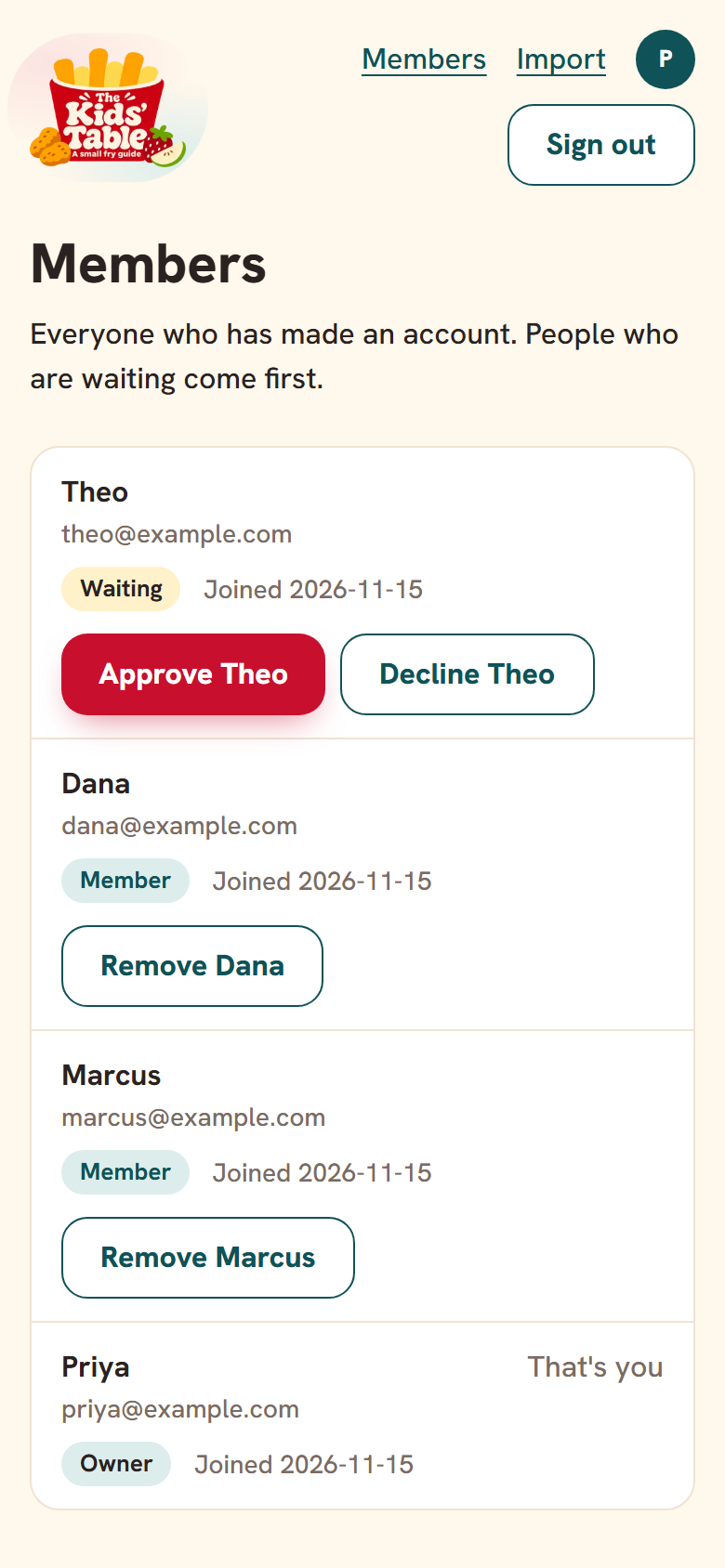
In a regular browser such as Edge or Chrome, open http://localhost:3000/sign-up (or the address your terminal prints, if port 3000 was busy). The screens below use the cast from Chapter 8, plus one more person. Priya is the owner, Dana and Marcus are members, and Theo has just signed up.
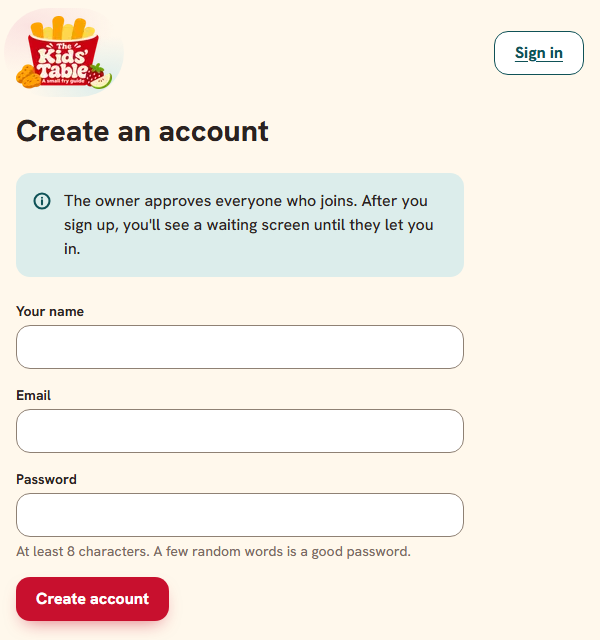
What you should see
After you sign up, you land on a screen headed Waiting to be let in, unless your email is the owner email. Then you go straight to the home page, and the header shows Members and Import. Members is the owner's page for managing people. It isn't the members' area that Chapter 13 builds.

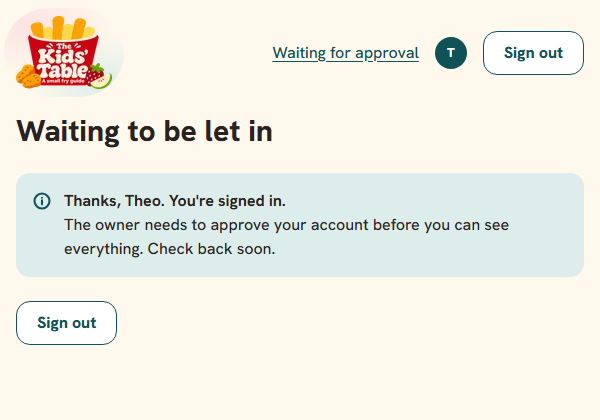
Now sign out, and sign in as someone else. Try these in order:
- Sign up a second account with a different email. It should land on the waiting screen. Use a private window for this one, so you stay signed in as the owner in your normal window.
- While waiting, type
/membersinto the address bar. You're sent back to the home page. Try/importtoo. - Sign out, then sign in as the owner. Open Members.
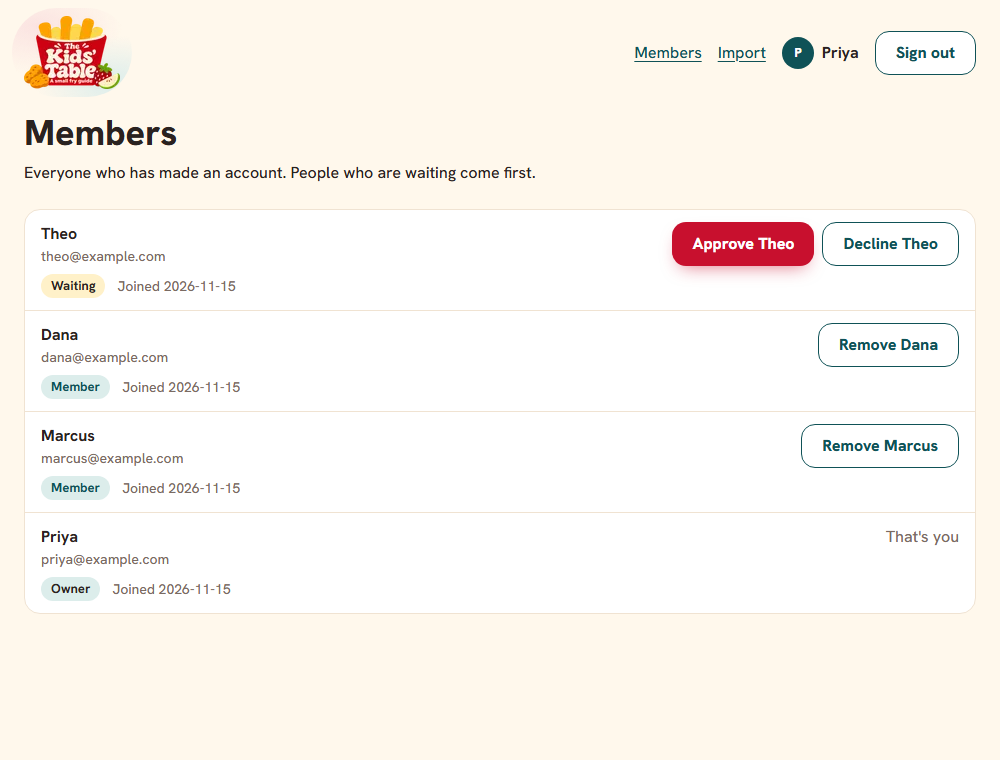
Press Approve beside the new person, then switch to their window and refresh. They are let in. Press Remove and the app asks first.
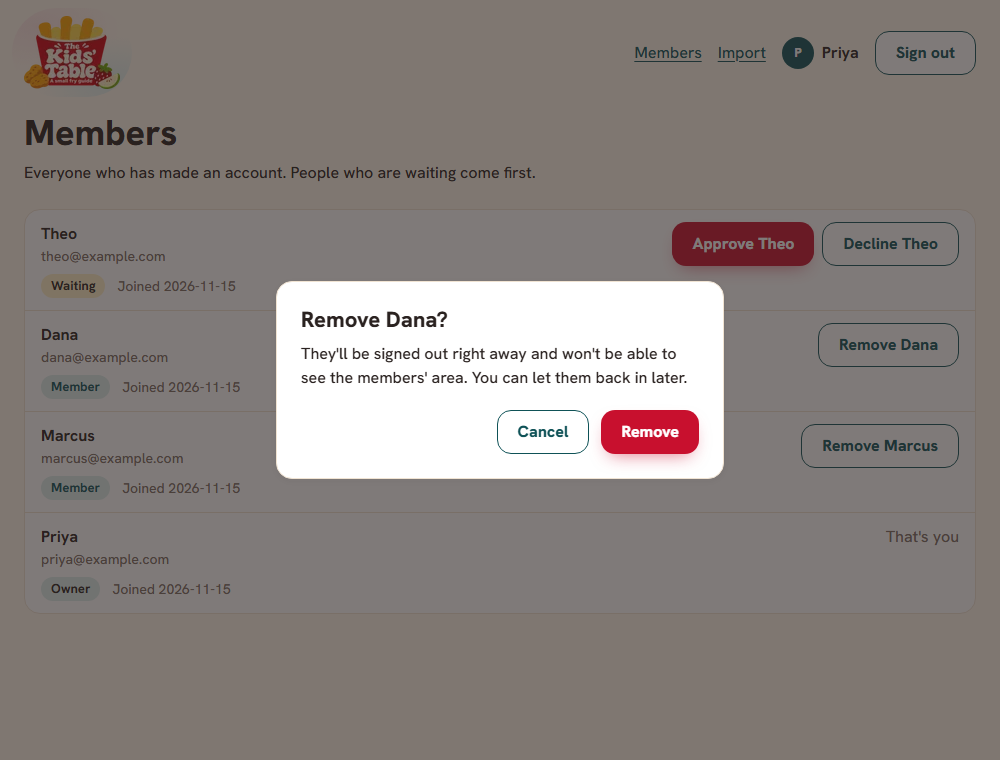
When someone is removed, they are signed out immediately. Their next click sends them to the sign-in page. We checked this by counting their sessions before and after.
How it keeps people from making themselves the owner
This is the heart of the chapter. Each layer below would catch a mistake in the others.
The form can't choose a role
Each person has two extra fields,
roleandstatus. They are marked so that sign-up ignores them. We tested it by sending a sign-up that includedrole: "owner". The account came out as a member, waiting.The app decides, from one setting
Just before a new person is saved, the app compares their email with
OWNER_EMAIL, ignoring capital letters, and only if no owner exists yet. A plain function does this, so it has its own tests. We tried the owner email asPriya@Example.comand it still worked.The database allows one owner
A unique index, which applies only to records whose role is
owner, makes a second owner impossible. A check in code isn't enough on its own: two sign-ups at the same instant could both pass it. We tried signing up a second account with the owner's email and were refused.
Every action checks for itself
Hiding the Approve button from non-owners isn't protection. A button is just one way to ask. A server action (you met these in Chapter 10) is a function on your server that the browser can call, and anyone who copies the request can call it without the page. So each action asks who is calling before doing anything:
export async function changeMember(formData: FormData) {
  const owner = await ownerForAction();     // the owner, or nothing
  if (!owner) return;                       // a stranger, a waiting person, a member: stop here

  // ...then check the id and the action, and whether that action makes sense for that person
}
We tested this by copying the owner's Approve request and sending it as a waiting person, as an ordinary member, and with no sign-in at all. In every case, nothing changed. Then we sent the same request as the owner, and it worked. That last step matters. Without it, you can't tell whether a refusal means your check worked or the request never arrived.
Ask who's signed in on every request
The app looks the person up in the database each time, rather than trusting a saved copy. That's why removing someone takes effect on their very next click. A cache would keep letting them in until it expired.
What a stranger can try, and what happens
| The attempt | What happened |
|---|---|
| Sign up with role: owner | Ignored. A member, waiting. |
| Sign up with the owner's email in other capitals | Becomes the owner, but only the first time. |
| A second account with the owner's email | Refused. |
| A sign-up sent from another website | Refused (403). Only the app's own address is accepted. |
| Approve someone while waiting, as a member, or signed out | Nothing changes. |
| Remove the owner | Nothing changes. The owner can't be changed by anyone. |
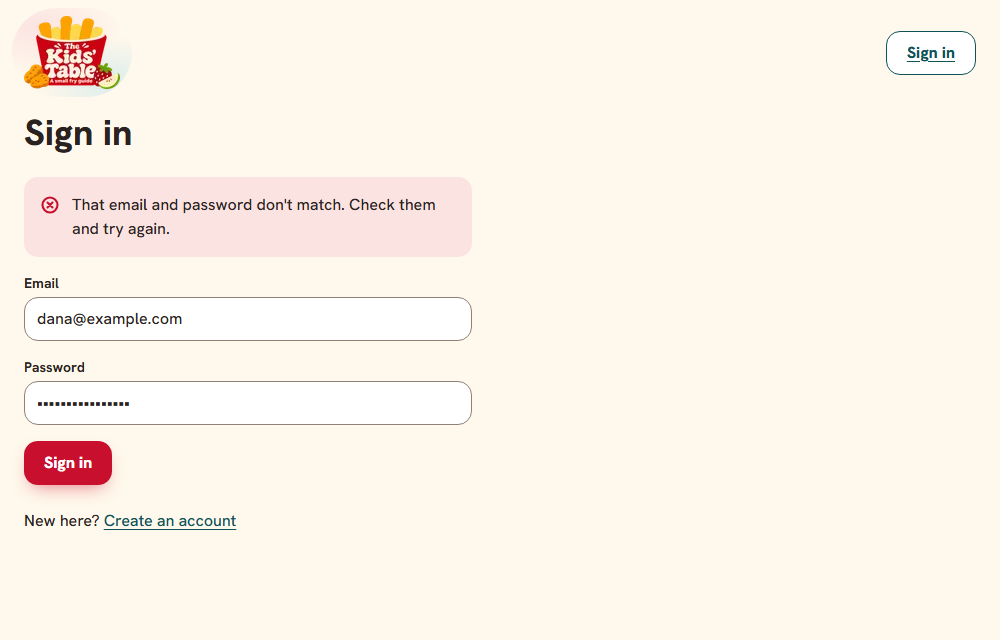
| A wrong password, and an email with no account | The exact same message, so it can't be used to find out who has an account. |
| Six wrong sign-ins in a minute from one address | On a production build, the sixth is refused (429), and a different address isn't blocked. On your computer's dev server the limit is looser (30), so you won't hit it by accident. |
One thing to check on the live site
The limit counts attempts per address. The app reads that address only from headers the host sets, x-vercel-forwarded-for first. We tested the limit on a production build on our own computer, where we could set that header ourselves. On Vercel, the host sets it and the visitor can't. We'll confirm that in Chapter 16 when the app is live.
4. Try to break it
Everything above came from asking Claude to attack its own work. You can do the same, and it's worth doing for any app that has accounts. Paste this after the build is done:
Now try to break what you just built, the way a stranger would. Use the demo database, and don't touch my real one.

Try at least these, and tell me for each one whether it worked or was stopped: signing up with role set to owner, signing up with the owner's email in different capital letters, a second account with the owner's email, a sign-up sent from another website, calling the owner's approve action while signed out, while waiting, and while a normal member, wrong passwords until something stops you, and removing a person and then checking they're really signed out. For each action you replay, also replay it as the owner, so I know a refusal means the check worked and not that the request never arrived.

Report what you found. Fix anything that got through, and tell me what you changed.
On the reference app, this found one real bug, which is in the next section.
If it doesn't work
The button says “Creating your account...” and never finishes. This happened to us. The one-owner rule is a database index, and the app created it in the middle of the sign-up. Better Auth had already opened a database transaction on the same collection, and MongoDB won't change a collection that a transaction is holding. The two waited for each other forever. The fix is to create the index before Better Auth starts, at the top of the sign-in address. If you see a sign-up that hangs, tell Claude it may be a deadlock between an index and a transaction.
You're signed in but sent to the waiting screen, and you're the owner. Either OWNER_EMAIL wasn't set, or the dev server hadn't been restarted, when you signed up. The owner is decided when the account is made, so changing the setting afterwards doesn't help that account. The clean fix: put OWNER_EMAIL in .env.local, stop the dev server with Ctrl+C and start it again, ask Claude to delete the one waiting account from your database (say exactly which email, and that it's your own test account), and sign up again. You should land as the owner, with Members and Import in the header. If the account was made with a different email, or someone else already holds the owner account, ask Claude to look at the people in the database before changing anything.
A button says “An unexpected response was received from the server.” Open the same page in a regular browser such as Edge or Chrome. The small browser built into some code editors doesn't always send a button's request to the app. The app never sees it, so your terminal shows the page loading and no line for the button, and the page shows this error. We hit it with the Approve and Remove buttons, and they worked in Edge.
“Sign-in isn't available right now.” The database address isn't set. Check MONGODB_URI in .env.local, then restart the app. Settings are read when the app starts.
Every sign-up fails with a 403. The address in your browser doesn't match BETTER_AUTH_URL. Use the same one in both, such as http://localhost:3000.
What Claude made
lib/memberRules.tsholds the rules as plain functions, with ten tests: who starts as what, and which action is allowed on whom.lib/auth.tssets up Better Auth, the two extra fields, the owner rule, and the guess limit.lib/session.tsanswers “who is signed in?” for pages and for actions.app/sign-in,app/sign-up, andapp/waitingare the screens.app/membersis the owner's page and its actions.components/uigained an avatar, a sign-out button, an account menu for the header, and a confirm dialog.- Import now asks “is this the owner?” on the page and in both of its actions. That replaces the temporary rule from Chapter 10 that switched import off on the live site.
Checkpoint
0 of 5Next step: approved members can now sign in, but there's nothing for them to see yet. In Chapter 13, you'll build the members' area: every restaurant, private ones included, and a way to add a new one.
Last checked November 15, 2026. Software screens and free-plan limits change. If something here doesn't match what you see, the official link in the chapter is the source to trust.