Chapter 10 · Part 3: Make it yours
Bring in your own content
Your app can reach its database, but the database is empty. This chapter does two jobs. First, you'll gather everything that makes the app yours into one settings file. Then you'll bring in your list from a spreadsheet, with a check that shows you what will happen before anything is saved.
Both jobs come from Chapter 8. The settings file is where “kinda a playground” becomes a decision. The check is how a messy spreadsheet comes in without anyone retyping it.
1. The settings file
Anything that's a name or a list lives in one file, lib/settings.ts. The app's name, what a restaurant is called, and every list a person can choose from come from there. To build your own version, you change this file and nothing else.
export const settings = {
  appName: "The Kids' Table",
  tagline: "A small fry guide",
  home: { heading: "Places to eat with kids", intro: "A short list of family-friendly spots..." },
  item: { singular: "restaurant", plural: "restaurants" },
  areas: [
    { key: "heights", label: "The Heights" },
    { key: "katy", label: "Katy" },
    { key: "sugar-land", label: "Sugar Land" },
    { key: "other", label: "Somewhere else" },
  ],
  features: [
    { key: "patio", label: "Patio" },
    { key: "playground", label: "Playground" },
    { key: "play-area", label: "Play area" },
  ],
  // ...food types, and what a visit is called
};
Every choice has two parts. The label is what people see, and you can change it any time. The key is what gets stored in the database. Once you have data, don't change a key, or the records that use it won't match anything. Notice that Play area sits next to Playground. That's the Chapter 8 decision, written down once.
A test you can run yourself
Change appName to something else, like “The Shelf Club”, and item to book and books. Save the file. The home page, the browser tab, and the words on the import page all change, with no other edits. Then change it back. We ran this on the reference app, and every name followed.
2. Get your spreadsheet ready
The app reads a CSV file. That's a spreadsheet saved as plain text, with one row per line and commas between the cells. Nearly every spreadsheet program can save one. Look for Save As or Download, and choose CSV.
The app looks for these columns in the first row. Only name is required.
| Column | What goes in it | Example |
|---|---|---|
name | The restaurant's name. Required. | Zigzag Zebra Pizzeria |
area | One of your areas. | The Heights |
foodType | One of your food types. | Pizza |
features | Any of your features, separated by semicolons. | patio;playground |
public | Yes or no. Whether the public page shows it. | yes |
lastChecked | The year, month, and day the details were last checked. | 2026-11-02 |
Column names are matched loosely, so Food Type, food_type, and foodType all work.
If you're using your own list, you can have Claude reshape it into these columns. Paste a few rows where the brackets are. Don't paste anyone's private details.
Here are the column names from my spreadsheet, and a few rows:

[paste the column names and a few rows]

Rewrite it as a CSV with exactly these columns: name, area, foodType, features, public, lastChecked. Features go in one cell, separated by semicolons. Public is yes or no. Dates are year-month-day.

Don't invent anything. If a cell isn't clear, leave it blank, and list the ones you weren't sure about so I can fix them myself.
If you're following along with The Kids' Table, you'll use two sample files. They're made up, with fictional restaurants. Save each one in a folder named data in your project, using the file names shown. Make the folder the same way you made plan.
name,area,foodType,features,public,lastChecked
Zigzag Zebra Pizzeria,The Heights,Pizza,patio;playground,yes,2026-11-02
Mango Moon Tacos,Katy,Tacos,patio,yes,2026-10-20
The Spotted Spoon,Sugar Land,American,play area,no,2026-09-30
Pickle Pony Burgers,The Heights,Burgers,patio;playground,yes,2026-10-12
Sunny Side Syrup House,Katy,Breakfast,patio;play area,yes,2026-04-10
Dandelion Dumpling House,Sugar Land,Asian,,no,2026-10-28
Hayloft Barbecue,Katy,Barbecue,patio;playground,yes,2026-11-05
Little Lighthouse Cafe,The Heights,Breakfast,play area,no,2026-06-01
The second one is deliberately messy. It has the kinds of mistakes from Chapter 8, so you can watch the check catch them.
name,area,foodType,features,public,lastChecked
Zigzag Zebra Pizzeria,heights,Pizza,patio;playground,Y,2026-11-02
Mango Moon Tacos,KATY,tacos,Patio,yes,10/20/2026
The Spotted Spoon,Sugar Land,American,playground (kinda),no,2026-09-30
Pickle Pony Burgers,The Heights,Burgers,patio;playground,yes,2026-10-12
Sunny Side Syrup House,Katy,Brunch,patio;play area,yes,2026-04-10
Dandelion Dumpling House,Sugar Land,Asian,,no,sometime in October
Hayloft Barbecue,Katy,Barbecue,patio;playground,maybe,2026-11-05
,Katy,Pizza,patio,yes,2026-11-01
zigzag zebra pizzeria,The Heights,Pizza,patio,yes,2026-11-03
Little Lighthouse Cafe,The Heights,Breakfast,play area,no,2026-06-01
3. Ask Claude Code to build it
Save the phase plan
Save this in your
planfolder as10-bring-in-content.md.plan/10-bring-in-content.md# Phase 10: bring in your content Read `plan/00-app-plan.md`, `plan/08-data-model.md`, and `plan/09-connect-database.md` first. This phase does two jobs. It puts everything that makes the app yours into one settings file, and it lets the owner bring in a list from a spreadsheet, with a check before anything is saved. ## Goal One settings file names the app and its lists. A CSV import page shows what would happen to every row, and saves nothing until the owner confirms. ## What to build - `lib/settings.ts`: the app name, the tagline, what a restaurant and a visit are called, and the lists of areas, food types, and features. Each choice has a key (stored in the database) and a label (what people see). Use the lists in `plan/08-data-model.md`. - Plain functions that check each row of a spreadsheet, in `lib/importRows.ts`, with tests. They need no database and no browser. - `lib/restaurants.ts`: the only file that touches the restaurants collection. The database itself must refuse a second copy of the same restaurant, using a unique rule on the name and area. - An import page at `/import`: choose a CSV file, see a preview, then confirm. Show the list of restaurants already in the database underneath. - The sample files in the `data` folder: `sample-restaurants.csv` (clean) and `sample-restaurants-messy.csv`. - The home page, the page titles, and the import page take every name from the settings file. ## The spreadsheet columns `name` (required), `area`, `foodType`, `features` (separated by semicolons), `public` (yes or no), `lastChecked` (like 2026-11-02). Match column names loosely: `Food Type`, `food_type`, and `foodType` are the same column. ## What happens to each row - **Ready.** Everything made sense. Quiet fixes are fine: capital letters, extra spaces, `Y` for yes, and dates written as 10/20/2026. - **Warning.** The row has a name, but a cell couldn't be understood: an area, food type, or feature that isn't in the settings list, a yes-or-no that isn't one, or a date that can't be read or is in the future. By default these rows are not imported. The owner can choose to import them anyway, with those cells left blank. - **Skipped.** There's no name, or the same place appears twice in the file, or it's already in the database. ## Rules for this phase - Nothing is saved at the preview step. - The server checks the file again when the owner confirms. Never trust the rows the browser sends. Check the type, and cap the file at about 200 KB and 500 rows. - Match the same place by name and area, ignoring capital letters and punctuation. - A server action can be called by anyone, not only from the page. **Until sign-in exists, the import must refuse to run on the live site.** Chapter 12 replaces that with "only the owner". - Use the owner's words for every message. No jargon. - Don't use my real database for tests. Use the sample files. - Tell me what each command does before you run it. ## Done when - `npm test` passes. - The messy sample shows 4 ready, 4 with warnings, and 2 skipped. - Importing the clean sample puts 8 restaurants in the list. - Changing only `lib/settings.ts` changes the app's name and wording. - `/import` says it's switched off in a production build. - `npm run lint` and `npm run build` both pass. ## Out of scope Editing or deleting a single restaurant, photos, sign-in, and the public page. Those are later phases.
Paste the prompt
Stop your app if it's running (click in its terminal and press Ctrl+C), then start Claude Code and keep it in the mode where you read each request, as in Chapter 6. Claude Code will build the app to check its work, and that can break a page that's open from a running app.
Prompt for Claude CodeRead plan/00-app-plan.md, plan/08-data-model.md, plan/09-connect-database.md, and plan/10-bring-in-content.md in this folder. Then do phase 10. Before you run any command, tell me in plain English what it does. The sample spreadsheets are in the data folder, and the tests should use them. Don't touch my real data. When you finish, tell me how to open the import page and which file to try first.
Claude Code installs a package for reading CSV files, writes the settings file and the import page, and writes tests. This is the biggest build so far, so expect it to take a few minutes and a lot of text.
Run the tests
Claude Code should run them for you. If it didn't, run them yourself:
PowerShellnpm test
What you should see
A list of checks with a tick beside each, and a line near the end that says every test passed. In ours, it was seven.
These tests check the spreadsheet rules on their own, with no database and no browser. That's why they take a fraction of a second, and it's why you can trust them to run every time you change something.
4. Try the messy file first
Start the app with the command below, and open http://localhost:3000/import in a regular browser such as Edge or Chrome. (If something else is already using port 3000, the app starts on 3001 instead. Use the address your terminal prints.) Choose sample-restaurants-messy.csv. Nothing is saved yet. The page checks each row and tells you what would happen.
npm run dev
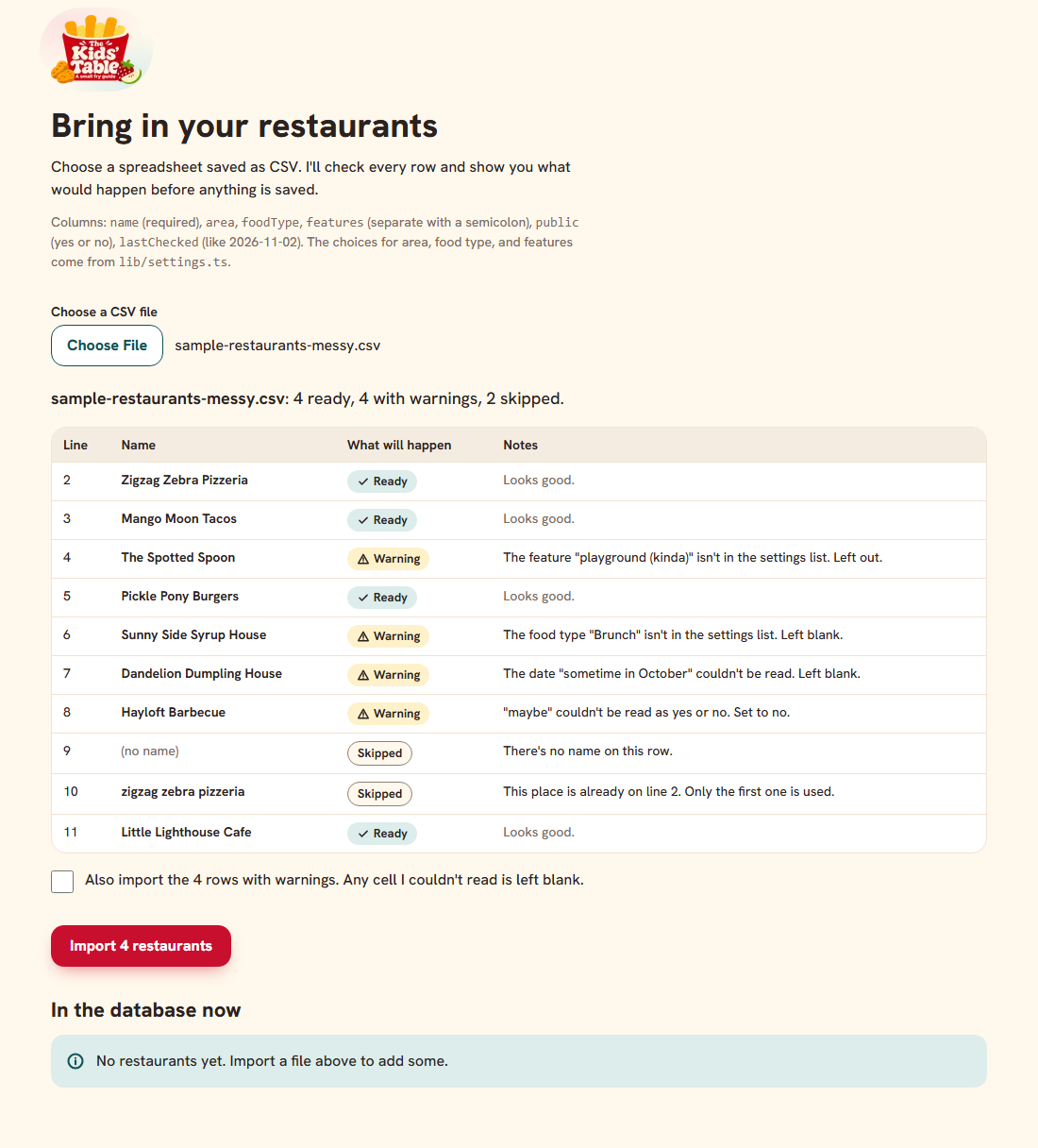
Every row lands in one of three states:
- Ready. Everything made sense. Small sloppiness is fixed quietly. Line 2 wrote
heightsin lowercase andYfor yes. Line 3 wroteKATYin capitals and a date as10/20/2026. Both are still ready. - Warning. The row has a name, but some cell couldn't be understood. “Playground (kinda)” isn't a feature your group has decided on. “Brunch” isn't a food type in your list. “Sometime in October” isn't a date. “Maybe” isn't yes or no. The page says which, in words.
- Skipped. A row with no name, and a second copy of a place that already appeared. The second Zigzag Zebra Pizzeria, spelled in lowercase, is caught as the same place.
You decide what happens to warnings
By default, only the ready rows are imported. The rows with warnings wait, so you can fix them in your spreadsheet. If you'd rather bring them in now, tick Also import the rows with warnings. The cells that couldn't be read are left blank.
Import the ready rows
Choose Import 4 restaurants. The page says how many went in and shows them in the list underneath.
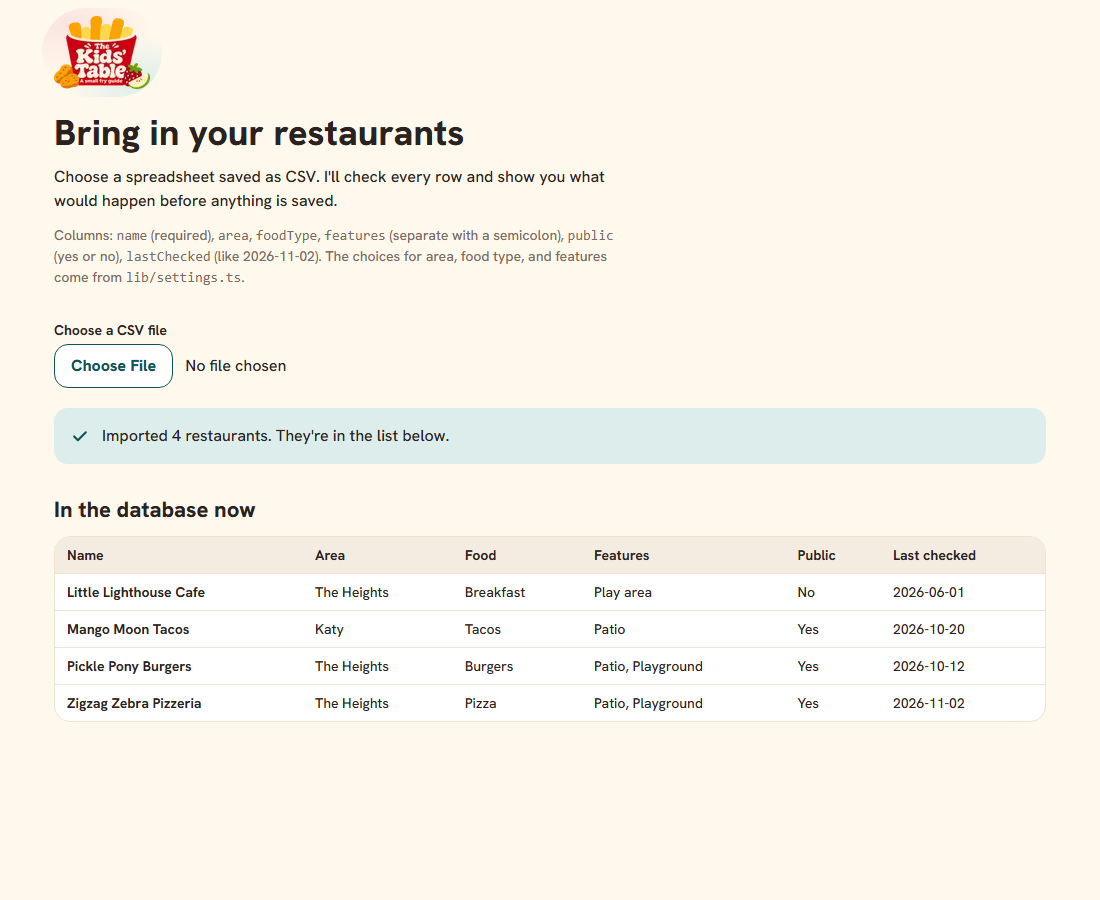
The four ready rows, imported, captured November 15, 2026. Choose the same file again
Now the four places you already imported show as skipped, with the note “This place is already in your list.” You can't add anything twice by running a file again.
Or import the warnings too
Tick the box and import the other four. They go in with blanks where the cells couldn't be read: no date for Dandelion Dumpling House, no food type for Sunny Side Syrup House, and no features for The Spotted Spoon. Hayloft Barbecue's unclear “maybe” became No, which is the safe choice for something that decides what the public sees.
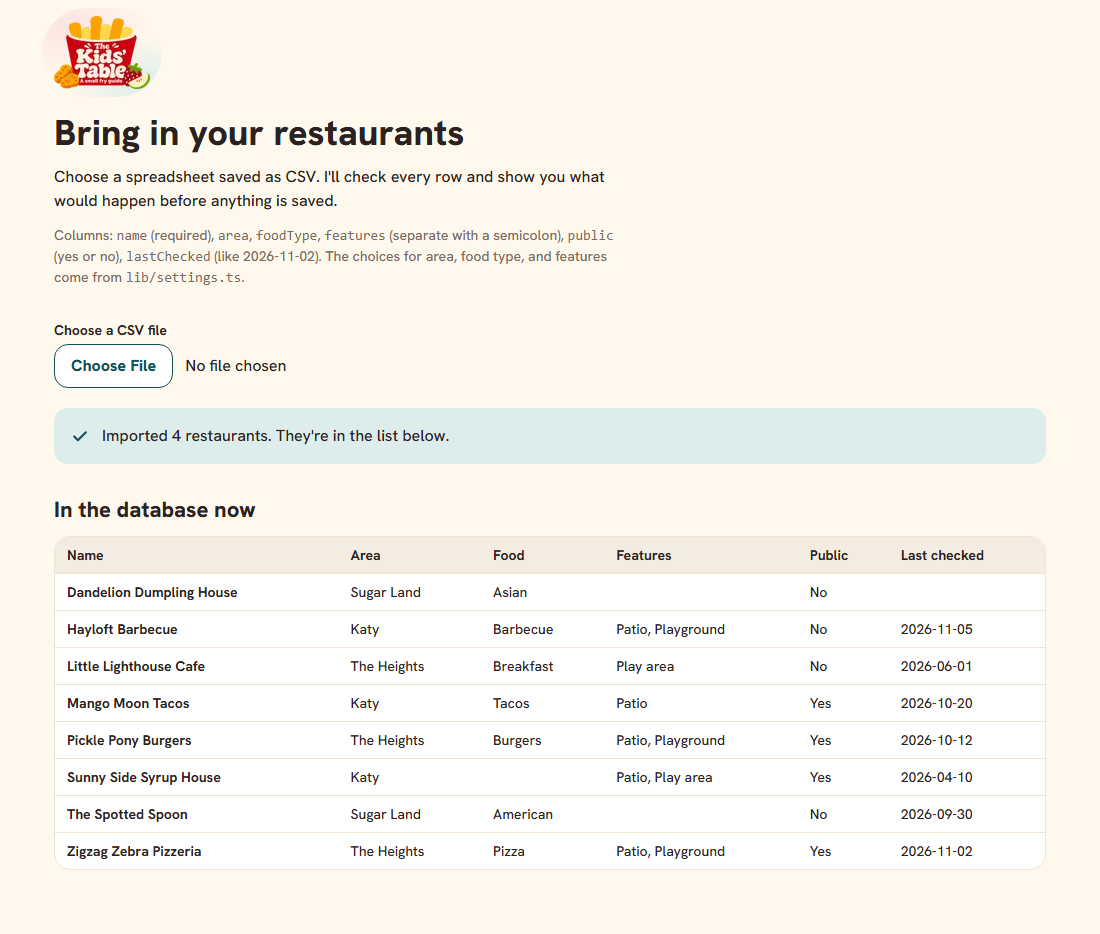
All eight imported, with blanks where cells couldn't be read, captured November 15, 2026.
There's no way to edit a single restaurant yet, so fixing a blank means fixing the spreadsheet. That's a good reason to import only the ready rows first. Try this last step only if you're happy to empty the list afterward, because the clean file in the next section skips any place that's already in it.
5. Import the clean file
Now choose sample-restaurants.csv. All eight rows are ready. If you imported only the four ready rows from the messy file, the clean file skips those four, adds the other four, and the list underneath is the cast of places the rest of this guide uses.
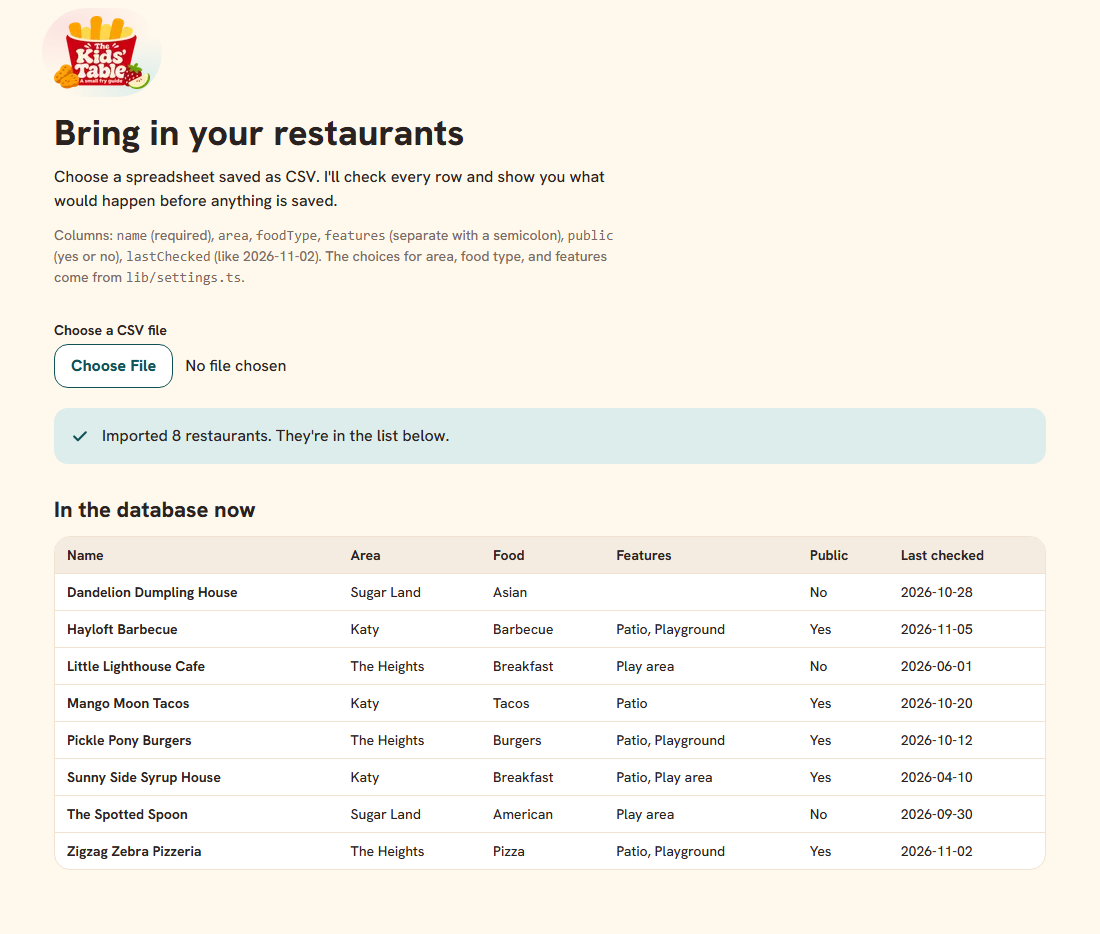
If you also imported the rows with warnings
Those four places are already in your list, with blanks in them, so the clean file skips them too. Ask Claude Code to empty the restaurants collection first. It's only sample data. Check that your own list isn't in there, then import the clean file again.
If it doesn't work
The page or the file chooser acts strangely, or a button does nothing. Use a regular browser such as Edge or Chrome, not the small preview built into your code editor. The preview can't always open a file chooser or send a button's request. Also, if a page misbehaves right after Claude changed some files, reload it. The app is rebuilding itself for a moment while the files settle.
“I couldn't find a name column.” The first row of the file has to name the columns, and one of them has to be name. Open the file in a text editor to see what the first line really says.
Everything is a warning. Your lists in lib/settings.ts probably don't include the words your spreadsheet uses. Either change the spreadsheet, or add the choice to the settings file.
Next.js complains about new Date() while prerendering. A part of the page that reads the database needs to say it runs when someone asks for the page. The fix is one line, await connection() from next/server, at the top of that part. The reference app does this on the import list and the status page.
Two safety rules this chapter adds
The import is switched off on the live site
A server action is the piece of code that runs when you press Import. Anyone can send a request to it directly, whether or not they ever see your page. Your app doesn't have sign-in yet, so there's no way to tell the owner from a stranger. Until Chapter 12, the import refuses to run on the live site, and it checks that inside the action itself, not just on the page. Here's what the deployed app shows:
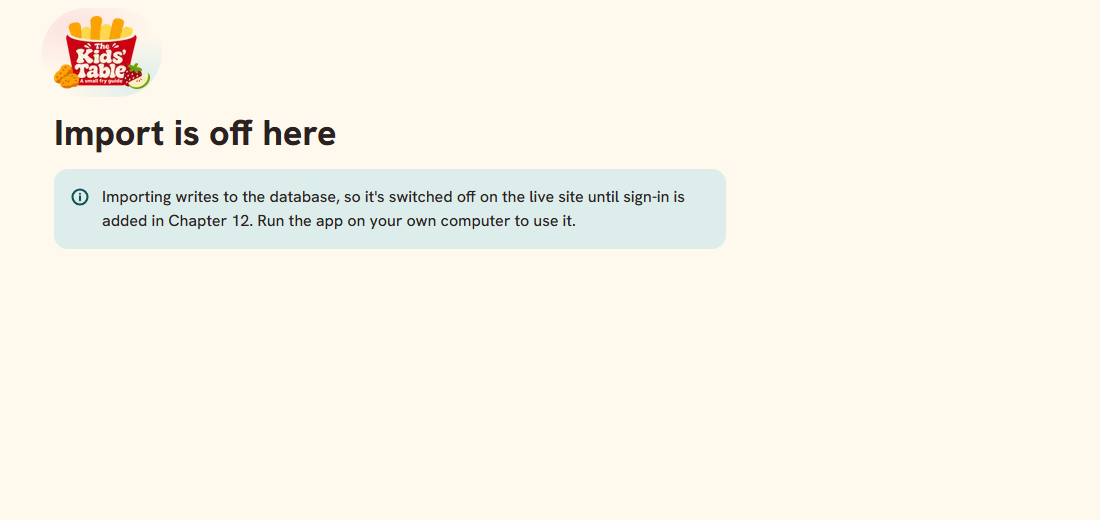
Chapter 12 replaces “never on the live site” with “only the owner.”
The database refuses duplicates too
The code checks for a place that's already in the list. But two people could press Import at the same moment, and both checks could pass. So the database also has a rule of its own: one restaurant per name and area. If a second copy ever arrives, the database says no. Whenever a rule really matters, put it in the database as well as in the code.
What Claude made
lib/settings.tsis the settings file.lib/importRows.tschecks the rows. It has no imports and no database, so it can be tested alone.lib/restaurants.tsis the only file that touches the restaurants collection, and it sets the one-per-name-and-area rule.app/importis the import page: the page, the form, the list, and the server actions.dataholds the sample spreadsheets.testsholds the tests, andpackage.jsonhas a newnpm testcommand.
Checkpoint
0 of 5Next step: your restaurants are in the database. In Chapter 11, you'll build the public page, where anyone can browse the ones you marked public, and search and filter them, with no sign-in.
Last checked November 15, 2026. Software screens and free-plan limits change. If something here doesn't match what you see, the official link in the chapter is the source to trust.